How to Add a Card to a User Through the Application
- Go to the Employee menu
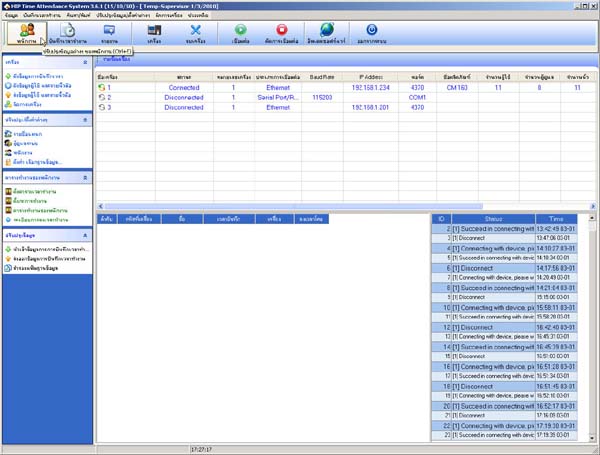
- Select the department (if there is no department yet, select OUR COMPANY)

- Click the Add button

- Enter the user's ID in the Scanner ID field

- Enter the user's name in the Name field

- In this section, enter the user's information (optional)

- In the Permission field, set it to User

- Enter the card number in the Card Number field (for example: 0001126587 017,19555 enter only the numbers after the space)

- In the Image field, you can upload a photo for the user

- When finished, click the Save button

- Then send the user list to the scanner
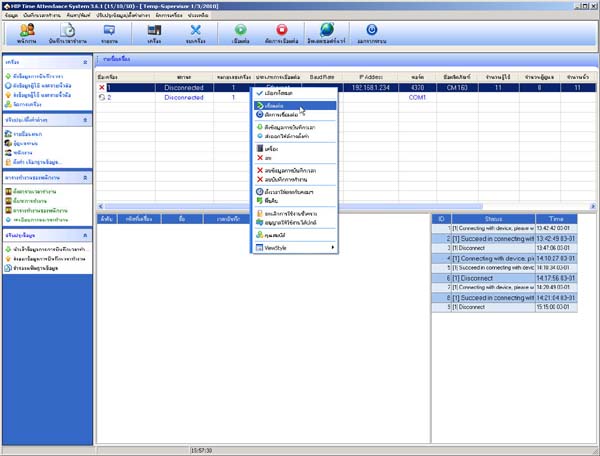
- Right-click to connect the scanner
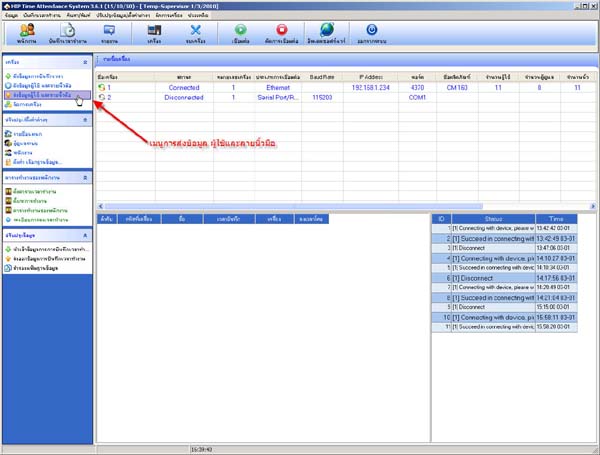
- Select the Send User and Fingerprint Data menu
- Select the department list
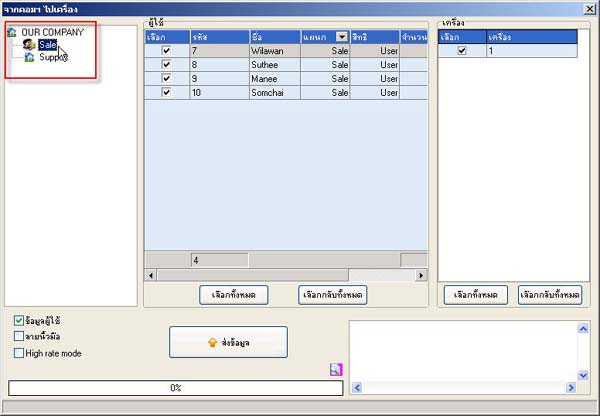
- Click the Select All button

- Check the box next to the user names you want to send to the scanner only
- Click the Send Data button
