How to Create and Assign Work Schedules to Employees
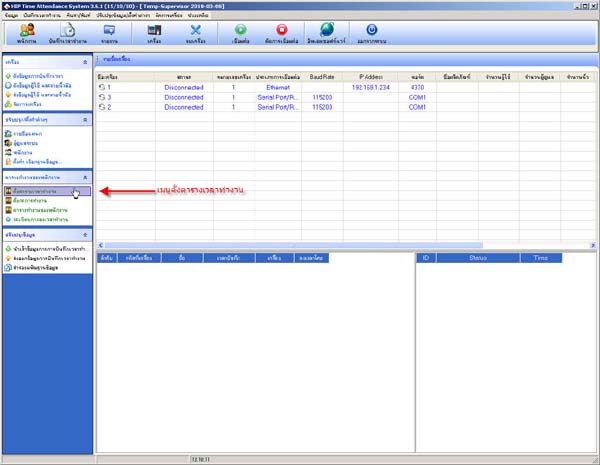
Go to the menu Set Work Schedule
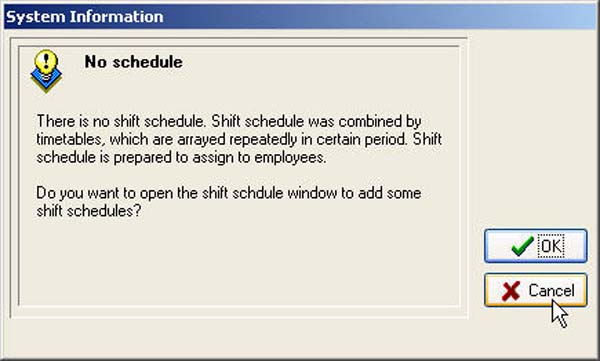
- Press the Cancel button
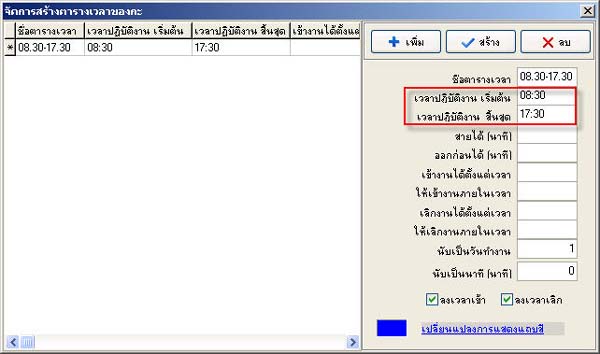
- The first step is to enter the name of the work schedule
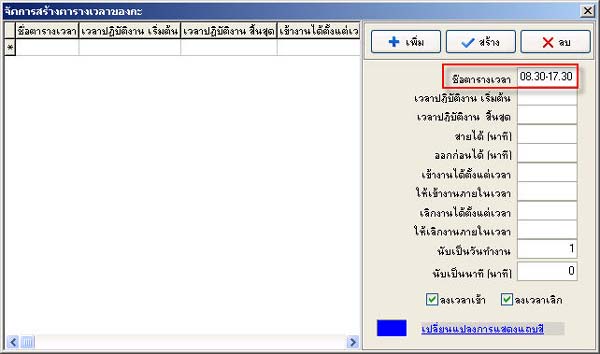
- Then enter the start time and end time
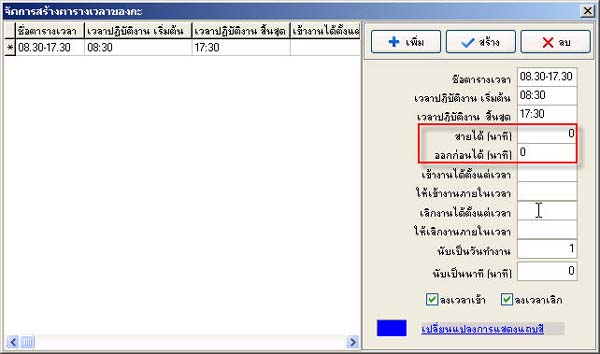
- Enter in this field how many minutes late or early an employee can leave
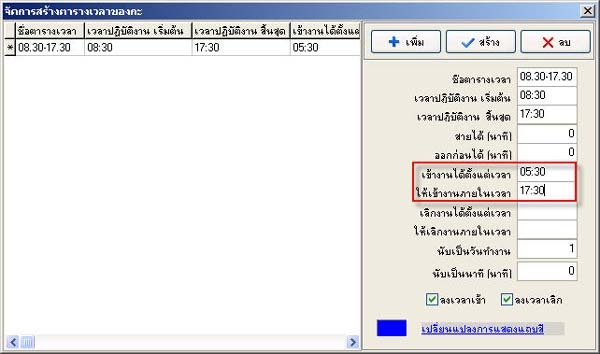
- In the field Can start work from time, enter a time before the work start time, for example, if work starts at 08.30, enter05.30 in this field
- In the field Must start work by time, enter the same time as the work end time
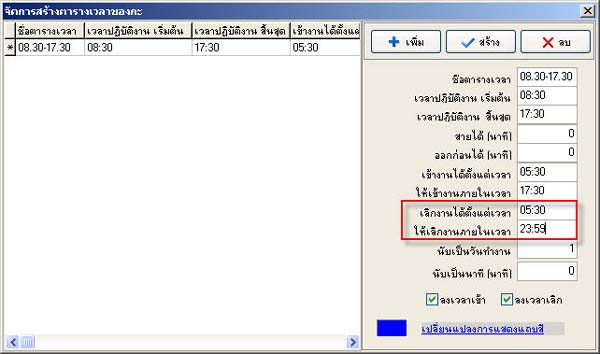
- In the field Can leave work from time, enter the same time as the field Can start work from time
In the field Must leave work by time, enter
23.59 because sometimes employees leave work after 17.30 of the work schedule
so the time will be recorded and saved
- In the field Count as working day, enter as 1 working day
- In the field Count as minutes, enter the total minutes worked in this day or leave it blank if not needed
Then in the section Clock in, Clock out, leave it as is
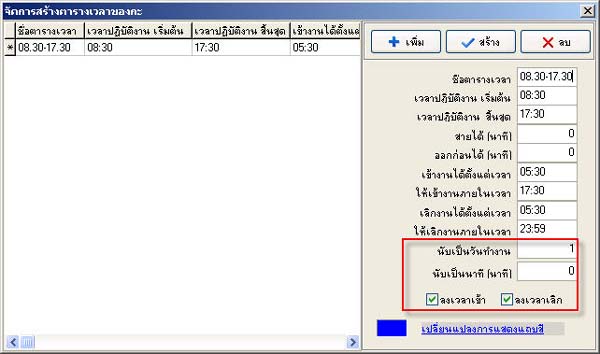
If you want to change the color of the work schedule, click on Change color bar display
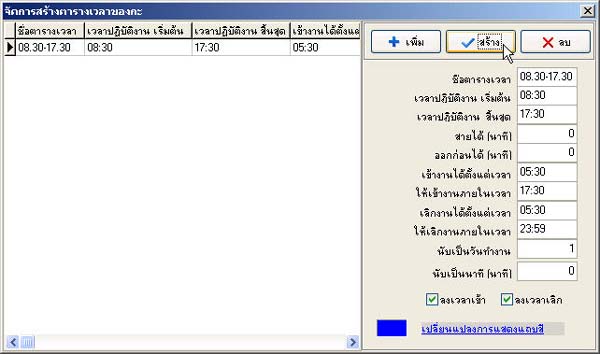
- When done, press the Create button
(If you want to add another work time, press the Add button, or if you want to delete the schedule, press the Delete button)
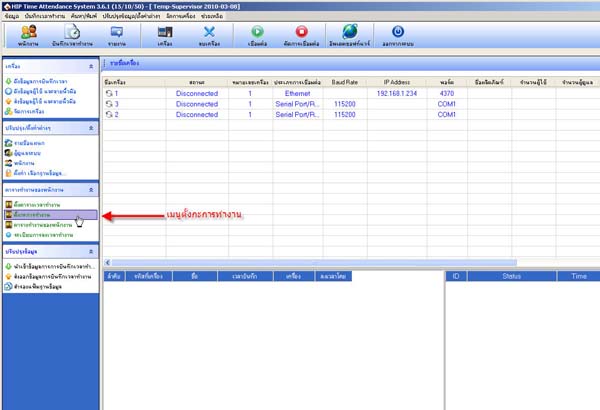
Then go to the Set Work Shift menu
- Press the Add button
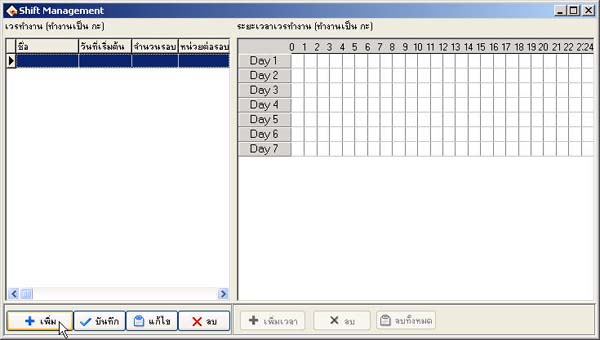
- Enter the name of the Shift Management and the start date of the employee schedule
- In the field Number of cycles and the field Units per cycle, no need to change. When done, press the Save button
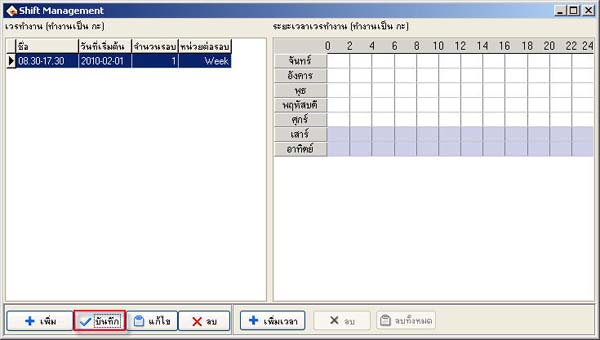
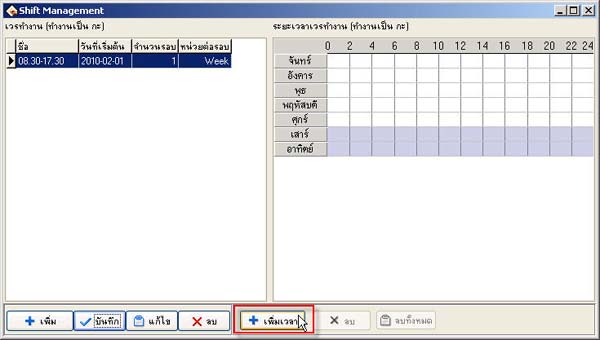
- Then press the Add time button
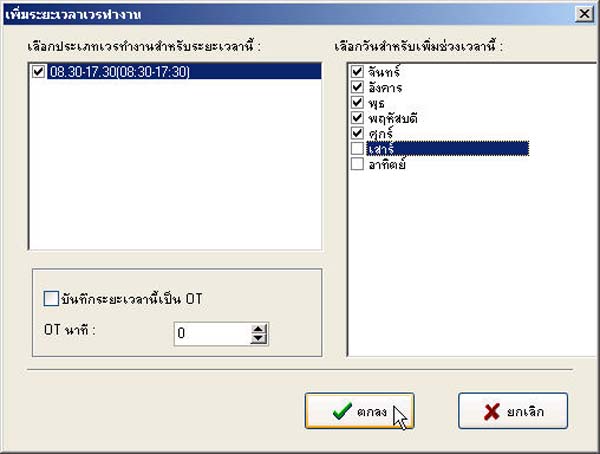
- Check the checkbox for the type of work time of the employee
- Then select the date you want to apply this schedule to. When done, press the OK button
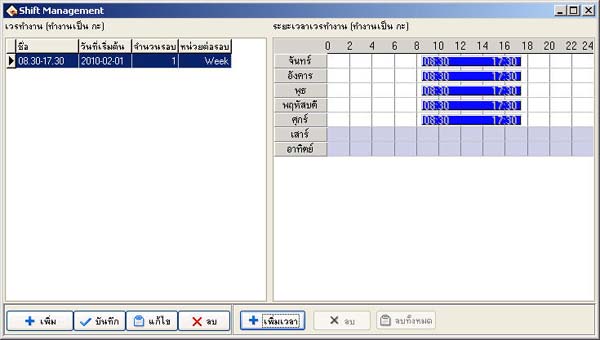
- The employee's work schedule will be displayed on the right side of the window
(If you want to add another schedule, press the Add button on the left side first, then click the Add time button on the
right side)
Then go to the Employee Work Schedule menu
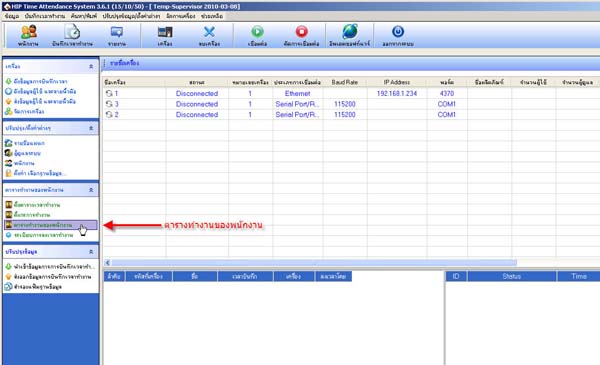
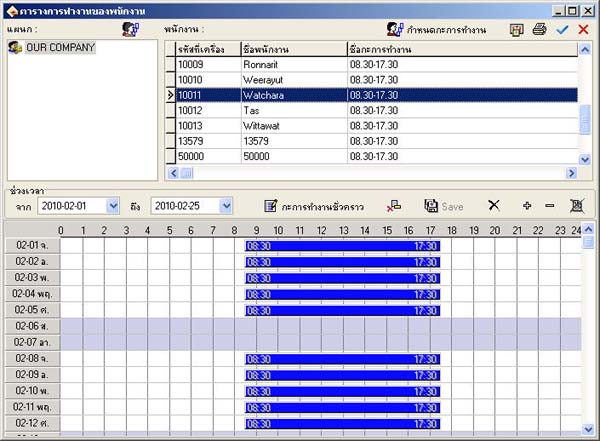
- Select the Department and then select the employee name. If you want to select all employees, click on theblue checkmark
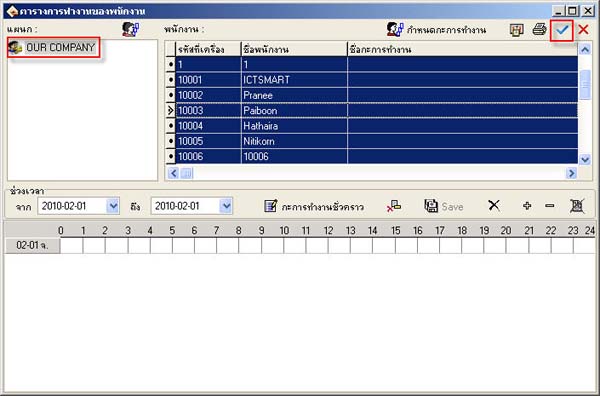
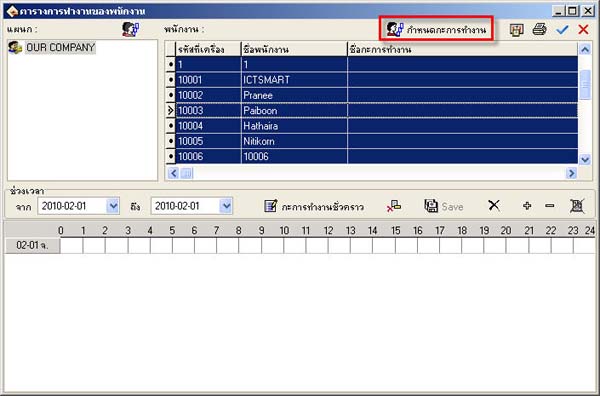
- Then click on Assign Work Shift
- Click on the plus button
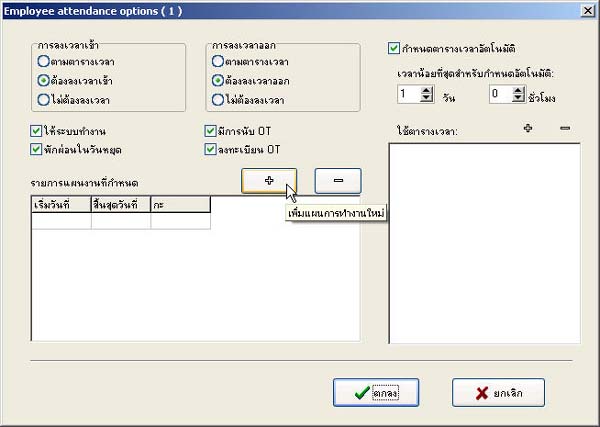
1. Select the work schedule you have set up
2. Select the period for using the work schedule from what date to what date
(In the To field, it is recommended to enter B.E. as 2999 for those who do not have any changes to the work schedule)
3. Then click the OK button
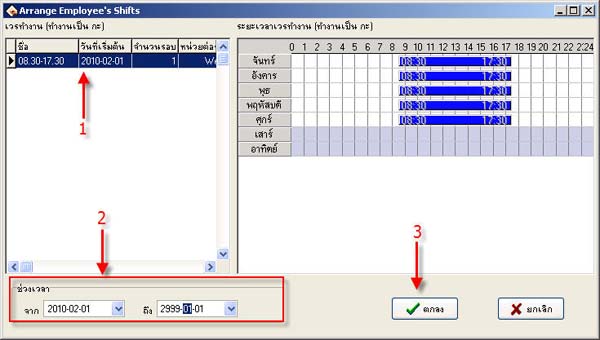
- Press the OK button
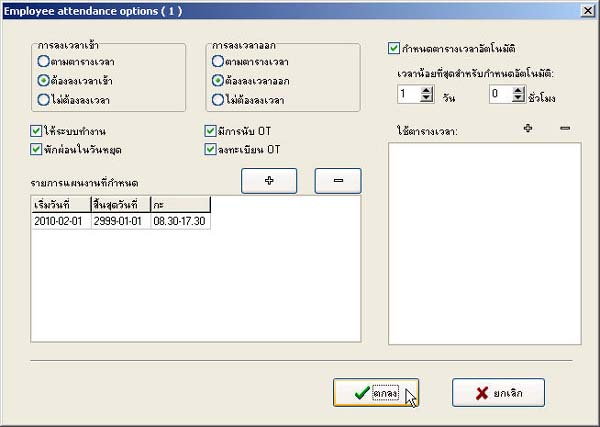
- Then the work schedule name will be displayed in the Work Shift name field