How to Delete User Data on Scanners and Databases via Software
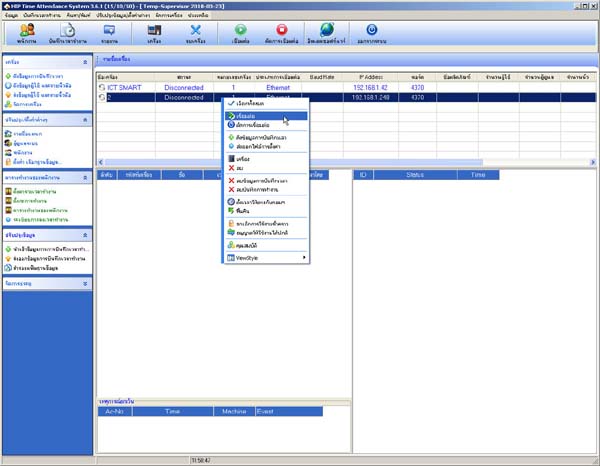
- Right-click on the scanner device list and select Connect
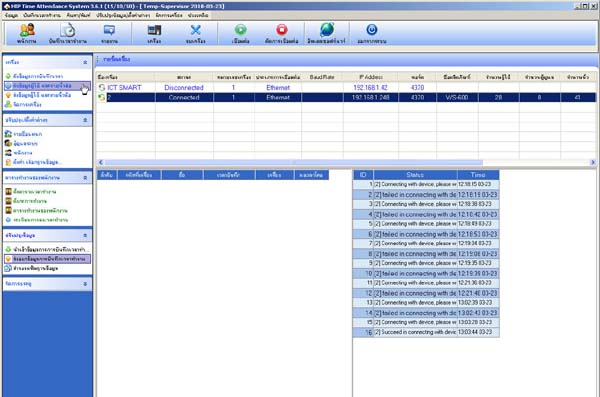
- After connecting successfully, go to the menu to Download User and Fingerprint Data
- Click the View Users on Device button to retrieve a list of all users in the scanner
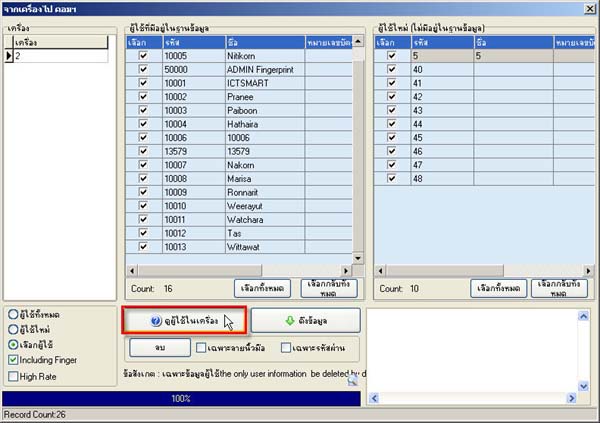
- Then click the Select All button if there are users in the right window
Click the Select All button as well
(The users shown in the right window are new users that have not been downloaded and stored in the database)
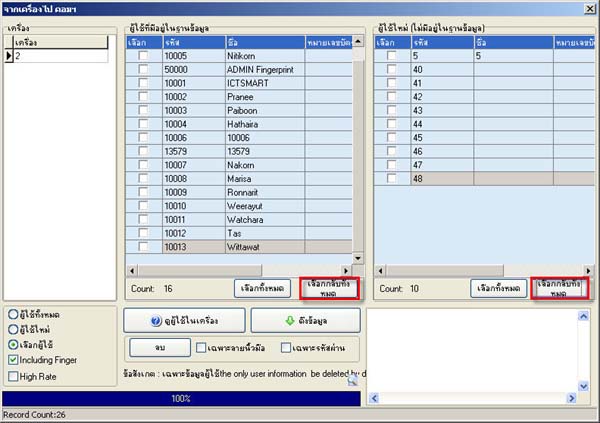
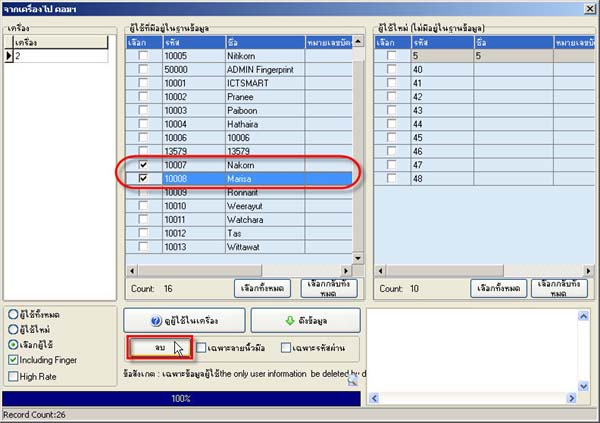
- Then check the checkbox next to the users you want to delete from the scanner, then
Click the Delete button
- A confirmation message will appear asking if you want to delete the users from the scanner and the number of users
Click the Yes button
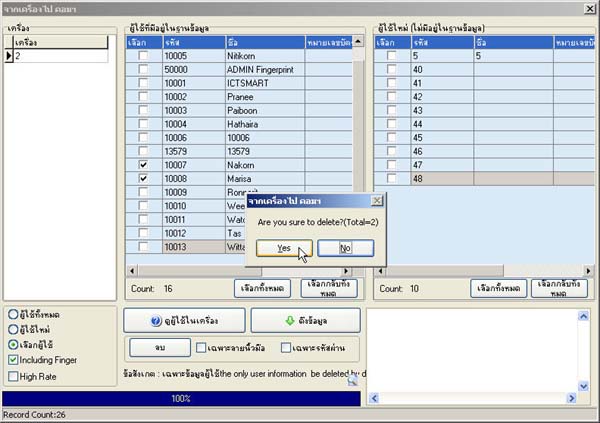
The selected users will be deleted from the scanner. When finished, close this window
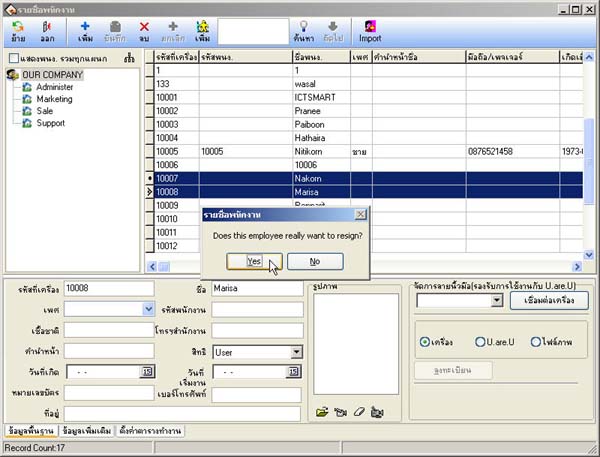
- Then go to the Employee menu to delete users from the database
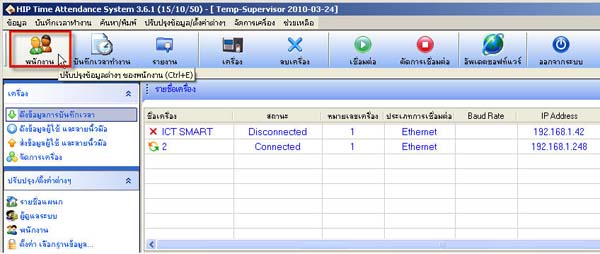
- Select the department and then select the users you want to delete from the database
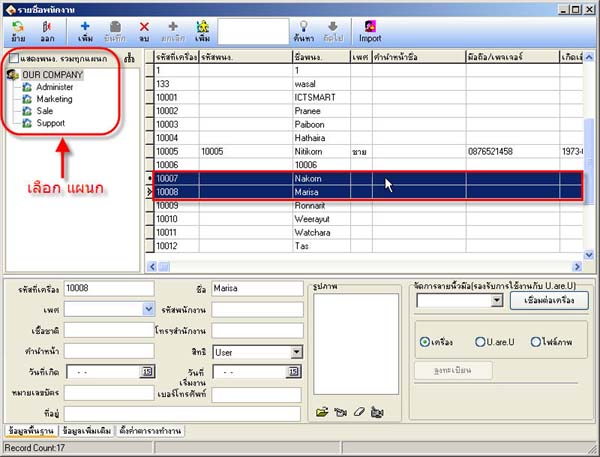
- When finished, click the Delete menu at the top
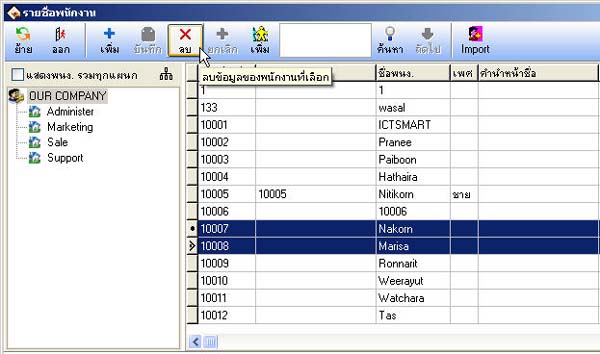
- A confirmation message will appear asking if you want to delete the users from the database. Click Yes