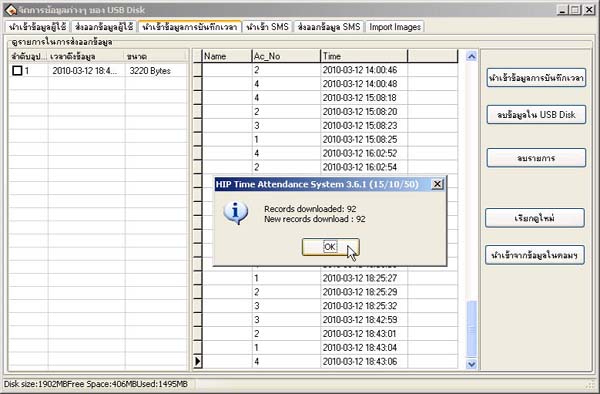
How to Import Employee Data and Time via USB
- The first step before importing employee data and time is to retrieve employee data and time recording information from the scanning device first
Then insert the USB into the computer
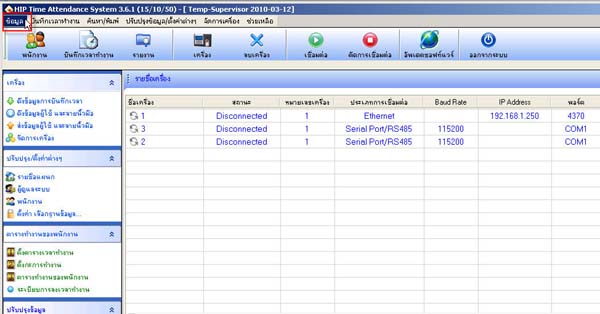
- Go to select the Data menu
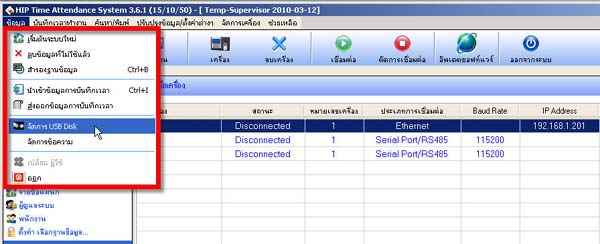
- Then select Manage USB Disk
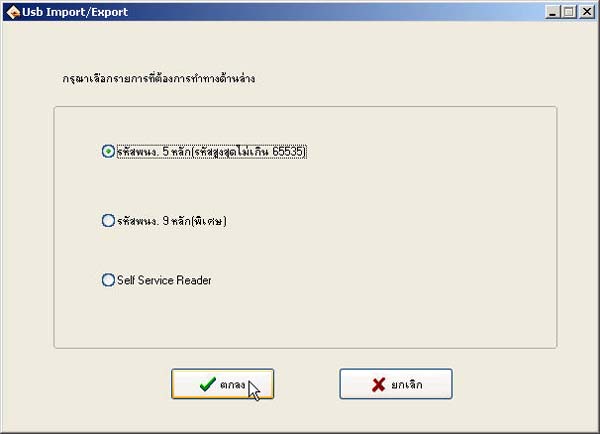
- For the selection, enter the ID code as 5 digits and then click the OK button
- The left panel will display the USB status. Click the Import User Data button to retrieve user data and store it in the database
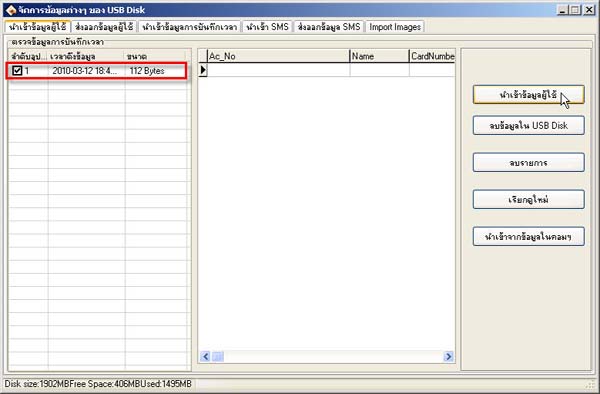
- Then a message will appear asking if you want to import the data. Click the OK button to proceed with importing the data
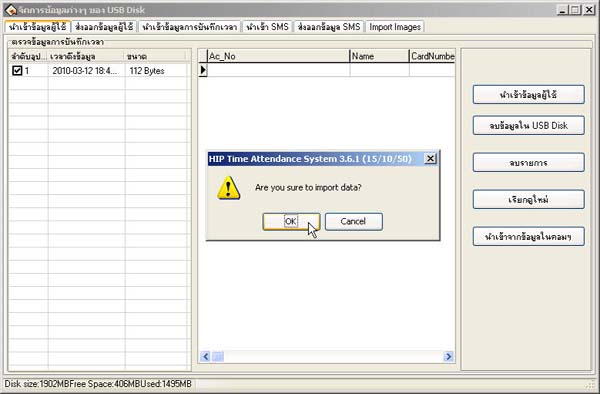
- Click the OK button again
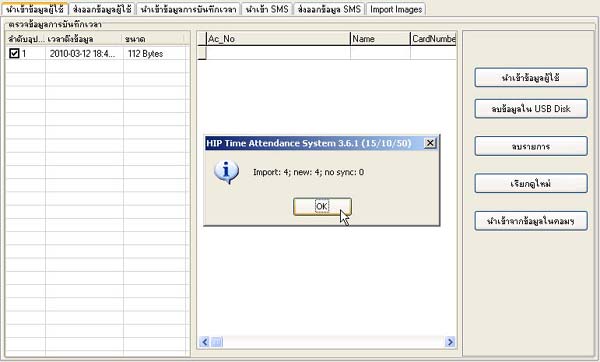
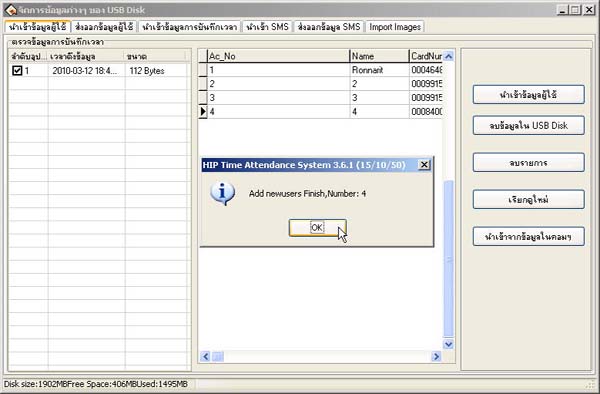
- The message will display the status of employee data retrieval showing how many employee records were imported. When complete, click the OK button
The user data will be stored in the database successfully
- Then go to select the Import Time Recording Data section to retrieve the time recording data of employees
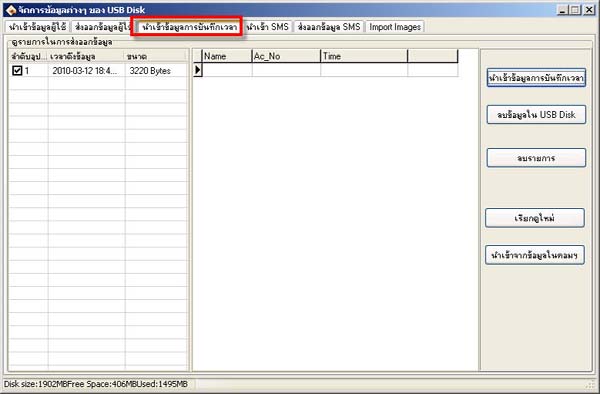
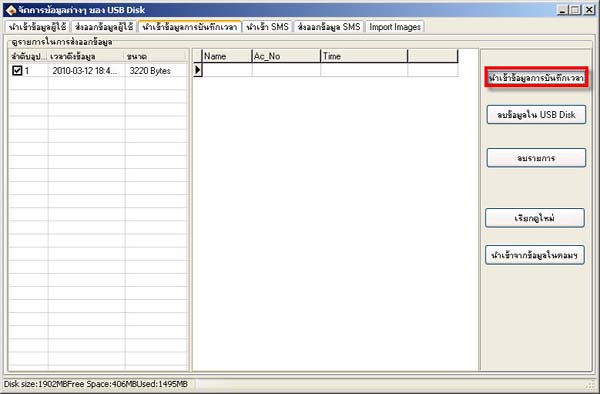
- Click the Import Time Recording Data button
- Then click the OK button again to retrieve the recorded time data
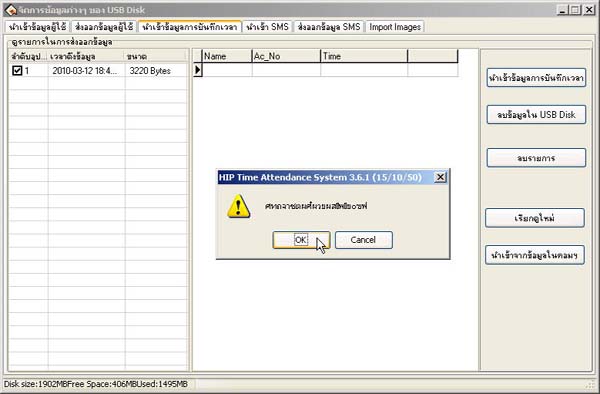
- Then the message will display the status of the time data that was retrieved showing how many records there are, and then click OK
All data will be stored in the database successfully