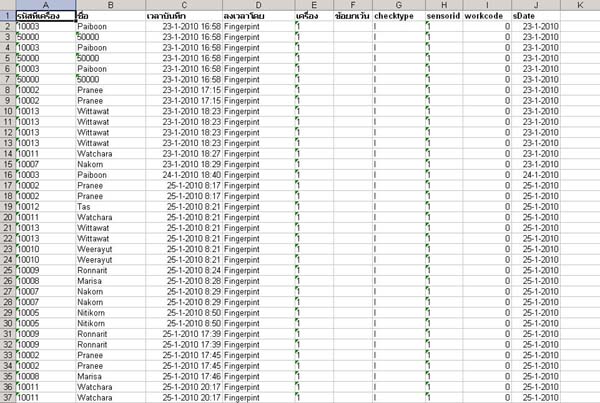
How to View Employee Access-Exit Report in the Reports Menu
Go to the Reports menu
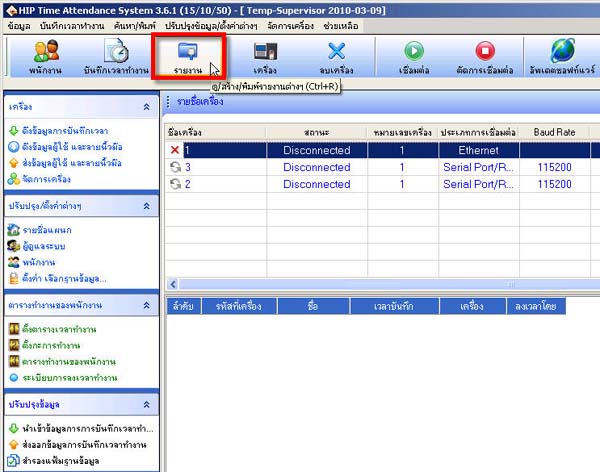
Select the department you want to view the report for (if you want to select all departments, select OUR COMPANY)
In the name field, select the name of the employee whose report you want to view (if you want to view all employees, select )
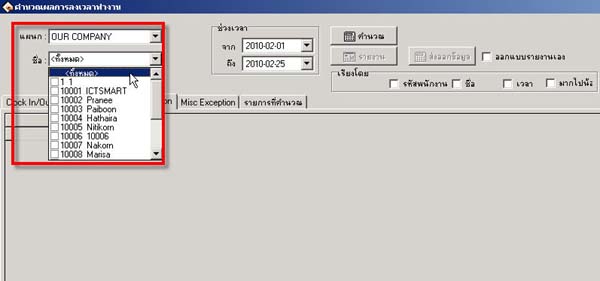
Select the date range for the report you want to view Then click the Calculate button
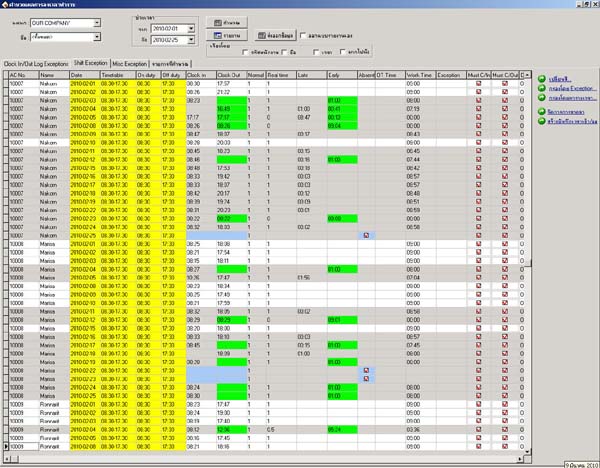
Once complete, the clock in/out report will be displayed
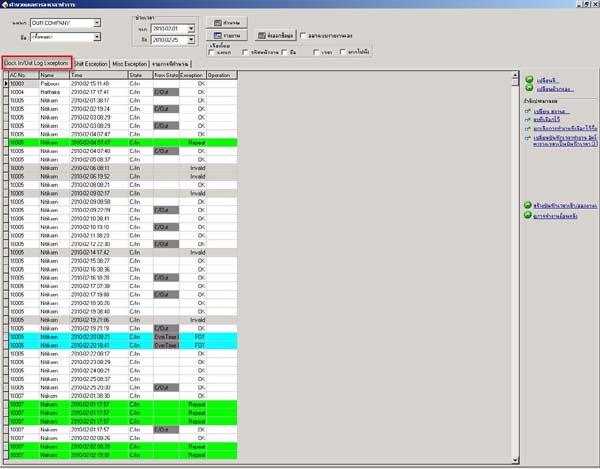
If you want to view all scan times for each day, select the ClokIn/Out Log Exception section
This window will display all times when there was a scanin/out
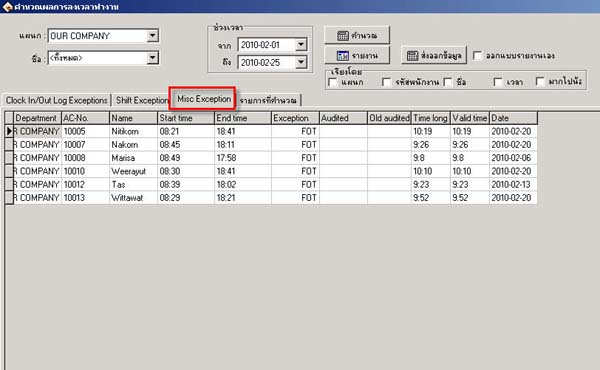
This window will display scan times outside the scheduled work hours, for example
if the work schedule is set to 08.30-17.30 (Mon.-Fri.) but the employee came to work on Saturday, this window will display the scan time for Saturday
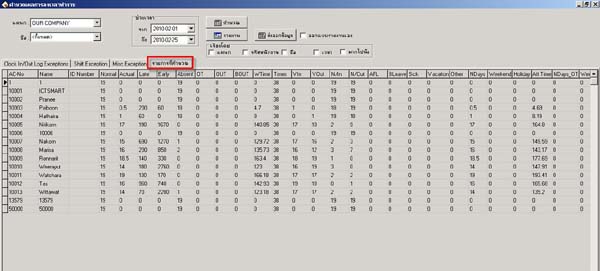
In the Calculation Details window, it displays the aggregated data of days and times that show the employee's clock in/out
showing how many days worked in each month, how many minutes late, or how many hours of overtime worked
This window will calculate everything for you
The employee's clock in/out scans can be exported as a report format by clicking the Report button
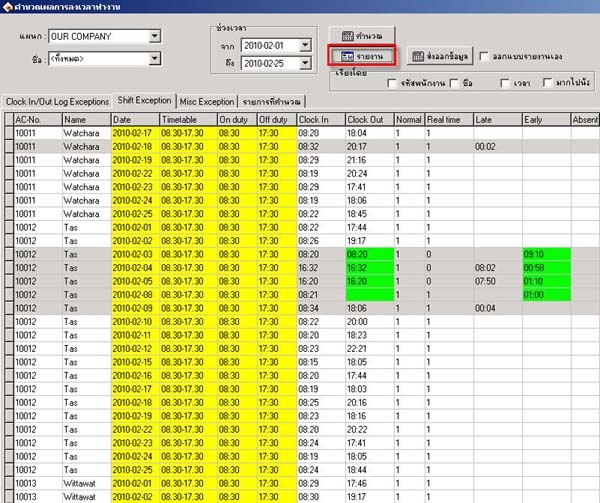
Then select the report format you want
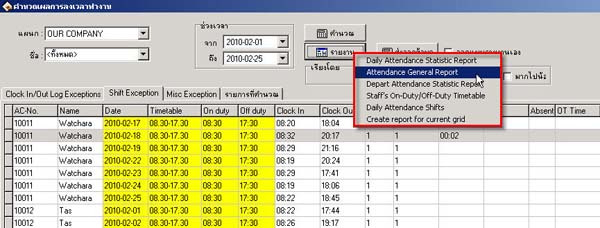
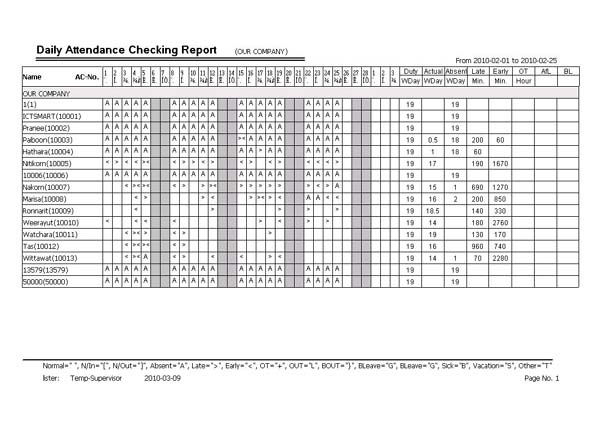
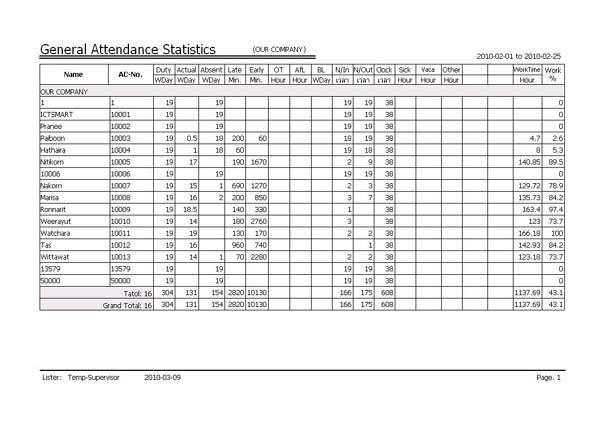
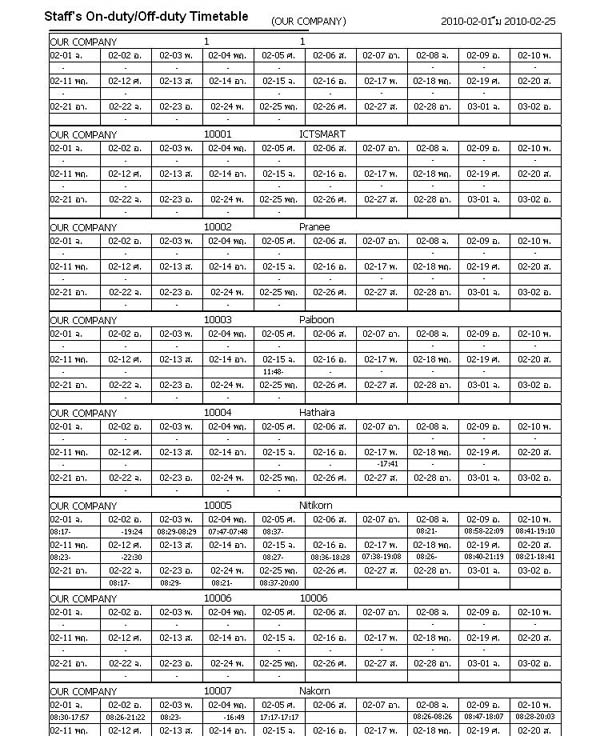
Example report formats
______________________________________________________________________________________________
______________________________________________________________________________________________
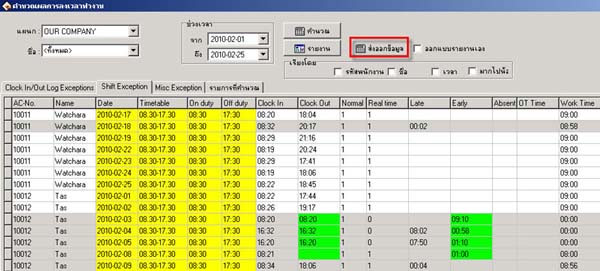
Or if you want to export various data files, click the Export Data button
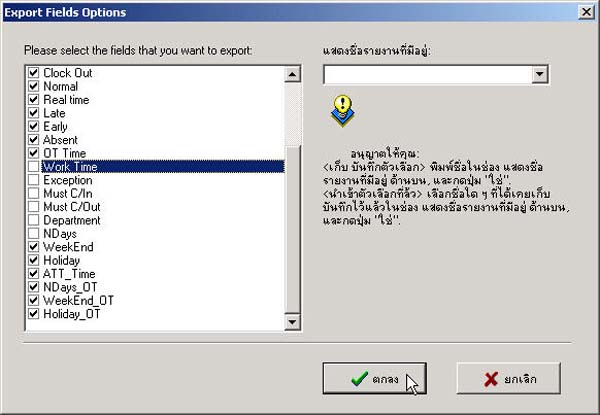
Then select which sections you want to display in the report and click OK
(If you don't want a section to display, uncheck the checkbox in front of that section)
Select the folder where you want to save, name the file, select the file format you want, then click OK
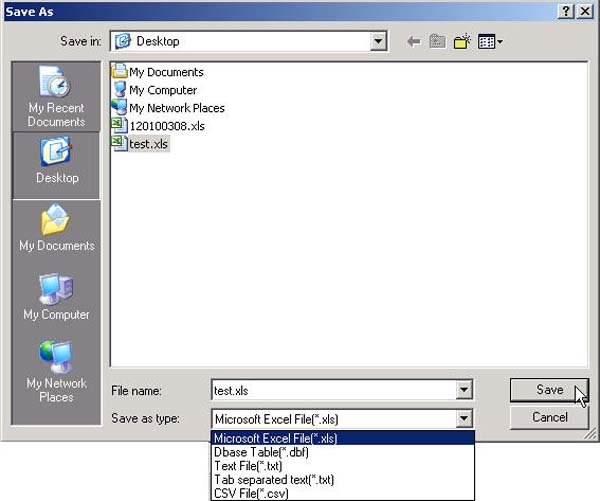
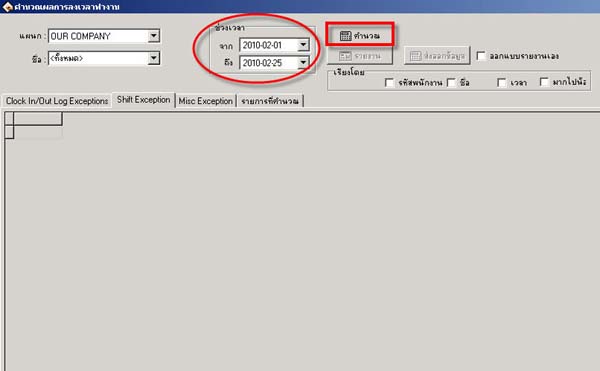
Example of exporting data as a Microsoft Excel file