Database Configuration at WarpX Client
Double-click on the WarpX Client Icon to open it
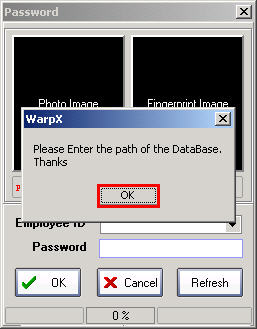
Then the program will display a message to configure the Database, click the OK button
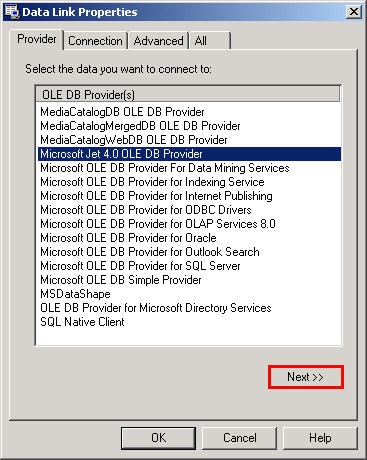
Select the Microsoft Jet 4.0 OLE DB Provider option and click the Next button
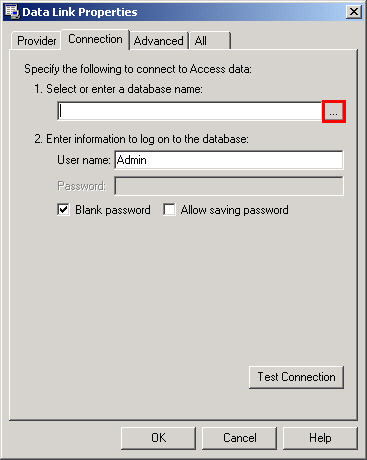
Click the square button next to the "Select or enter a database name" field
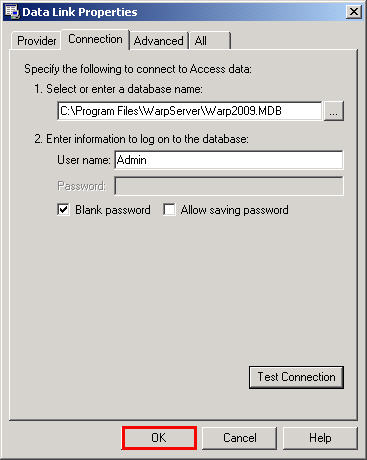
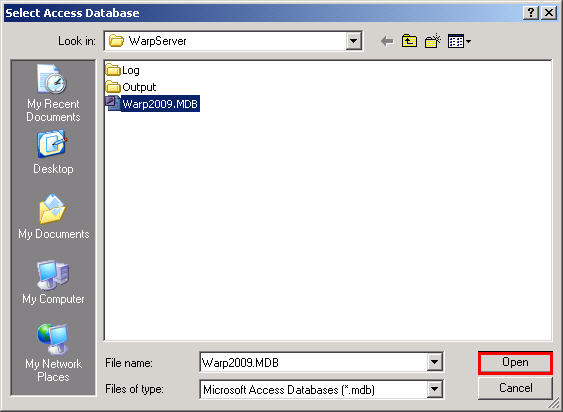
Then navigate to C:\Program Files\WarpServer to select the Warp2009.MDB Database and click the Open button
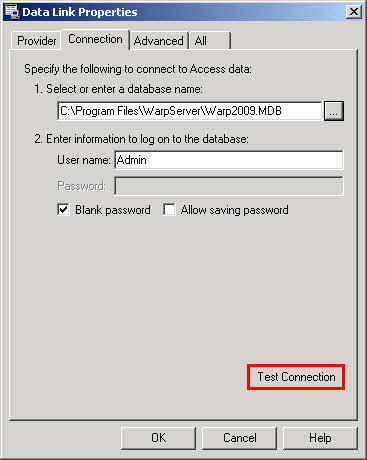
Then click the Test Connection button
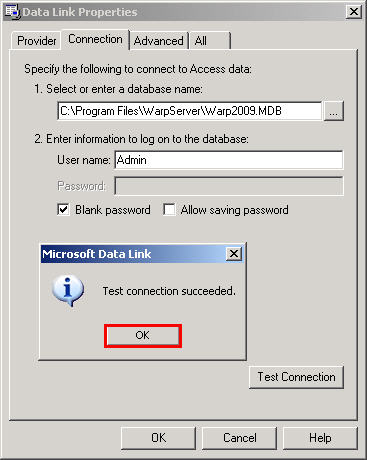
A message will appear stating "Test Connection succeeded" which indicates that the Database is working properly
Then click the OK button
Click the OK button again