How to Configure 701 Server Application Settings
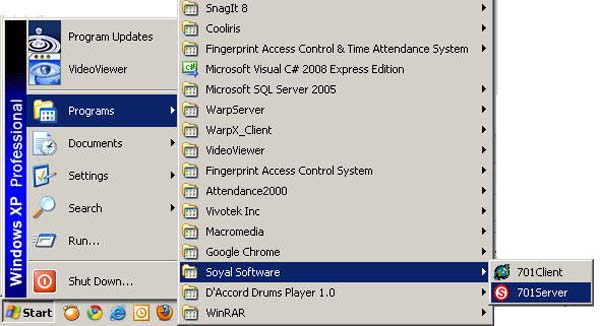
Click on the Start menu > All Programs > Soyal Software > 701 Server
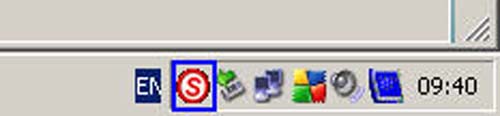
When you open 701 Server, an icon with the letter S will appear in the menu bar at the bottom right
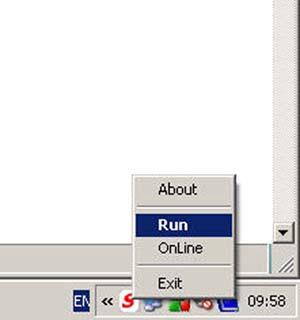
Right-click on the icon and click Run
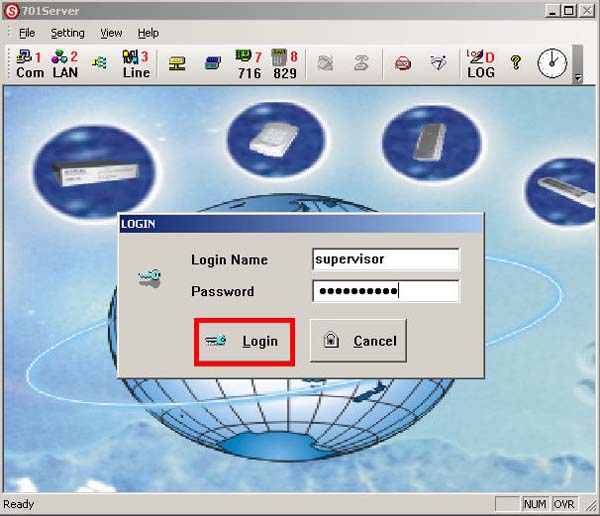
Then enter your username and password in the Login Name field and Password field
(Note: Default Login name: supervisor Password: supervisor)
After that, click the Login button
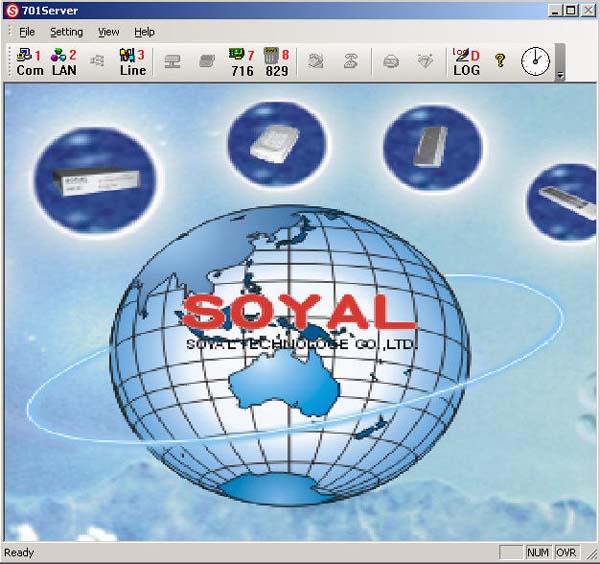
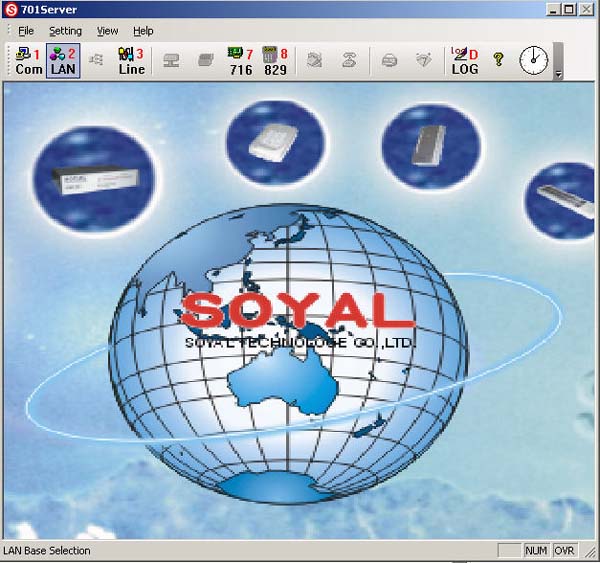
You will then enter the main menu page of 701 Server
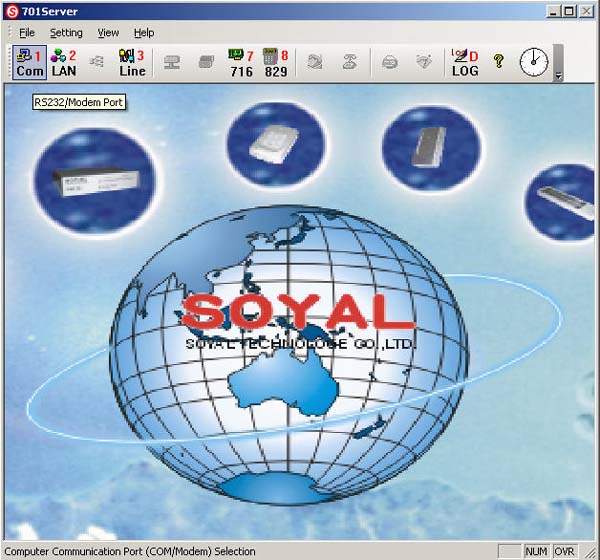
Select the Com menu (RS 232 / Modem Port)
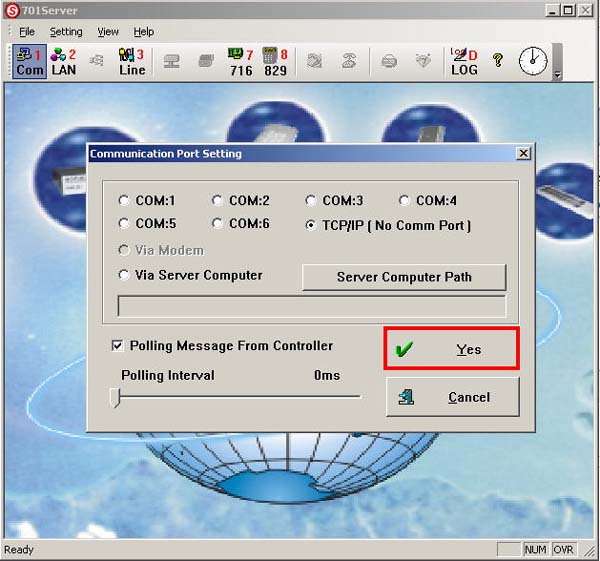
Select the type of connection. In this case, select TCP/IP connection, then set the values as shown in the image and click Yes
Go to the Lan menu
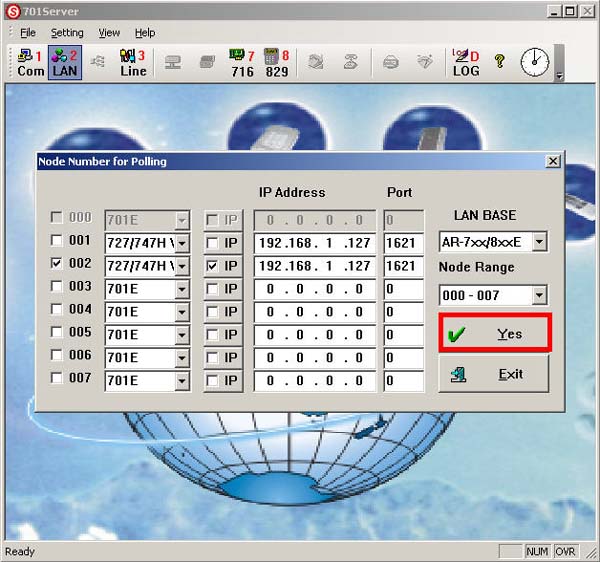
Select the type of device you want to use, then enter the IP Address. The Port will be (1621)
Then click Yes
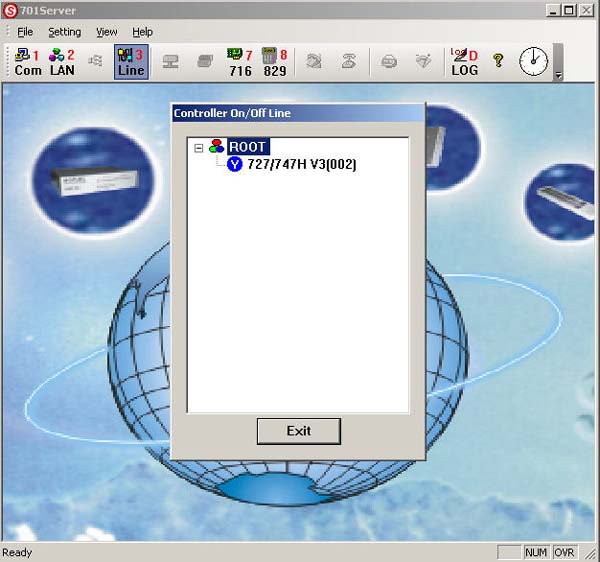
Then go to the Line menu to check if the connection was successful. If the symbol shows Y, it means the connection was successful
If the connection is not successful, check the values that were set