How to Configure Work Schedule (Shift Schedule)
How to set up work schedule (work shifts)
Divided into 3 sections as follows
1.Maintenance Timetables (setting up work time periods)
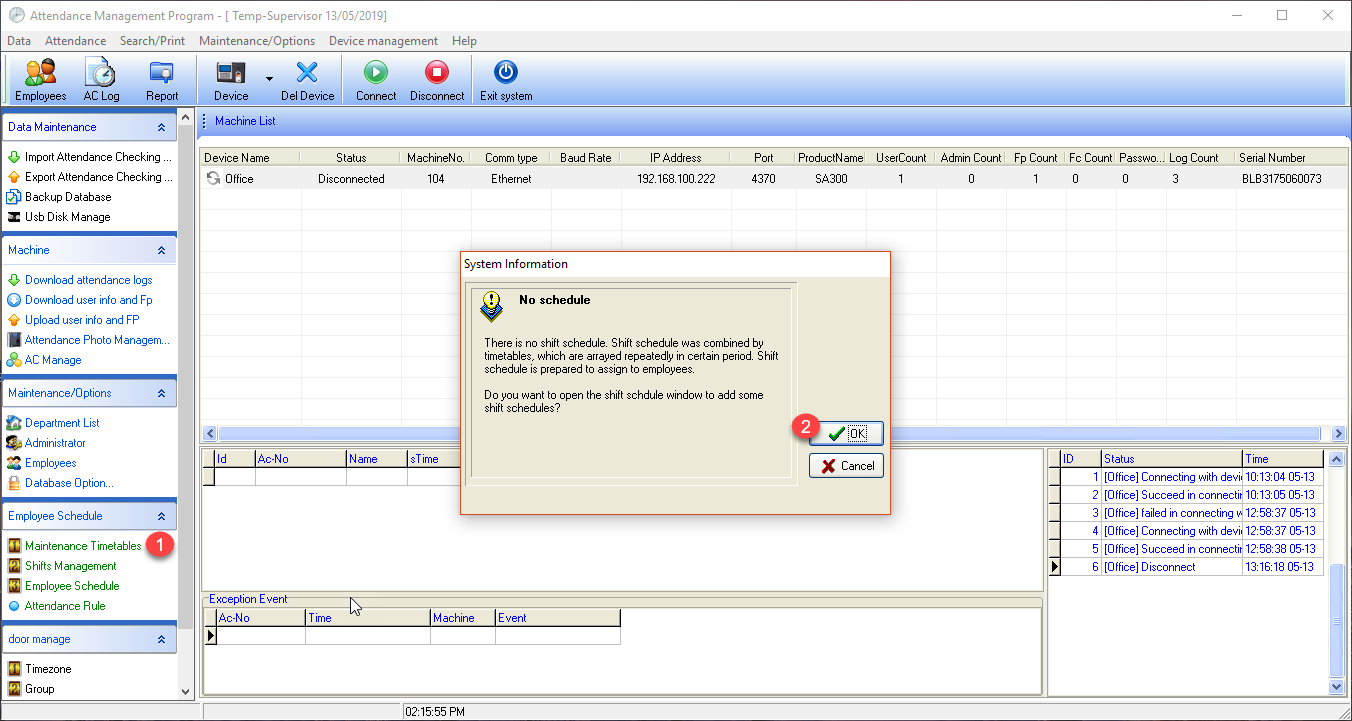
" If this is the first time setting up, the system will display 2 examples of schedule settings as shown in the image "
1.Time entry with 1 clock-in and 1 clock-out
2.Time entry with 2 clock-ins and 2 clock-outs
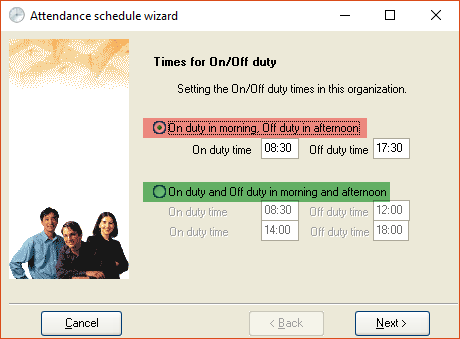
In this example, we will select the type with 1 clock-in and 1 clock-out
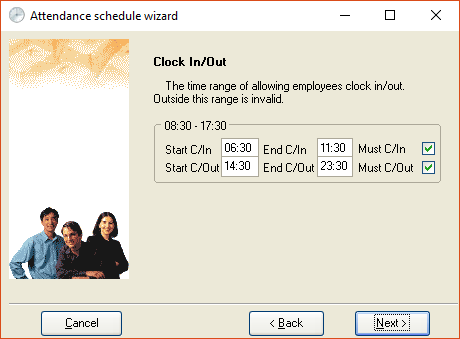
Next, the system will display clock-in and clock-out information
Example in the image: you can clock-in starting from 06:30 and clock-in closes at 11:30, and you can clock-out starting from 14:30 and clock-out closes at 23:30
The system will notify the rules allowing employees to arrive late or leave early by how many minutes
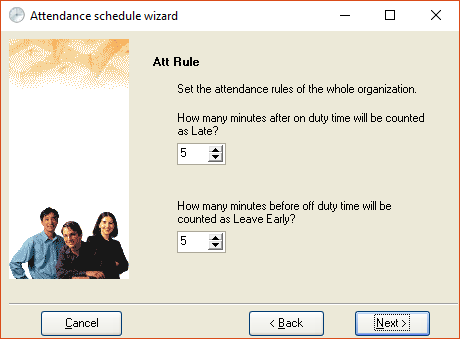
Next, the system will ask for the following details
1.Red box Do you want to use this schedule for all employees?
2.Green box Do you want to use this schedule for all departments?
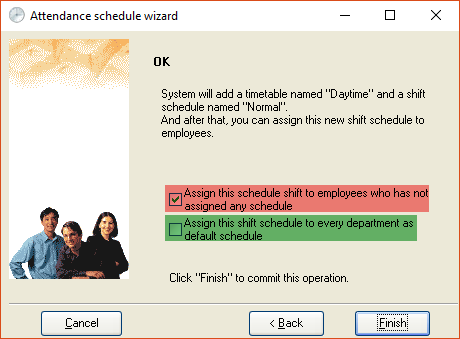
After finishing the setup, the system will display the configuration information
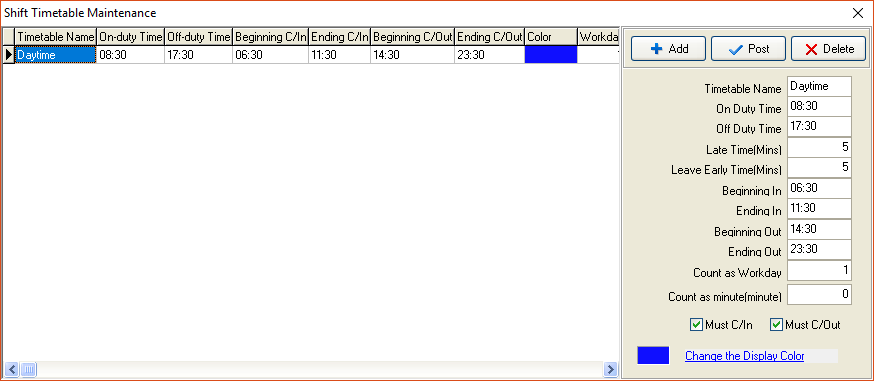
Once you have finished setting up the time, proceed to topic 2. Set time and date
2.Shifts Management (Set time and date)
Example: want to change the date from the original working days Mon-Fri to Mon-Sat
Click the Add Time button to edit the information
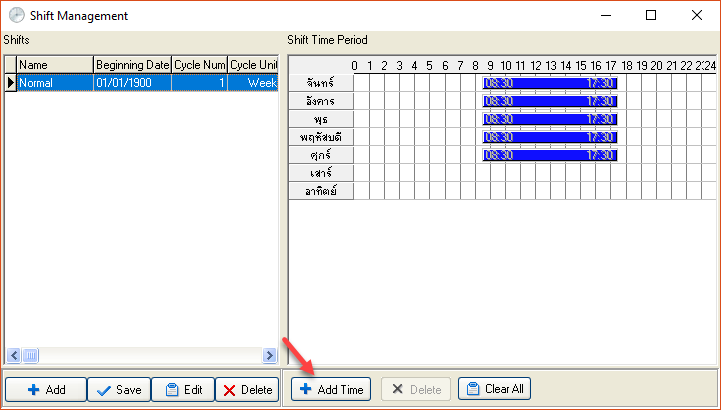
Select the work time period and date you want to edit, then click OK
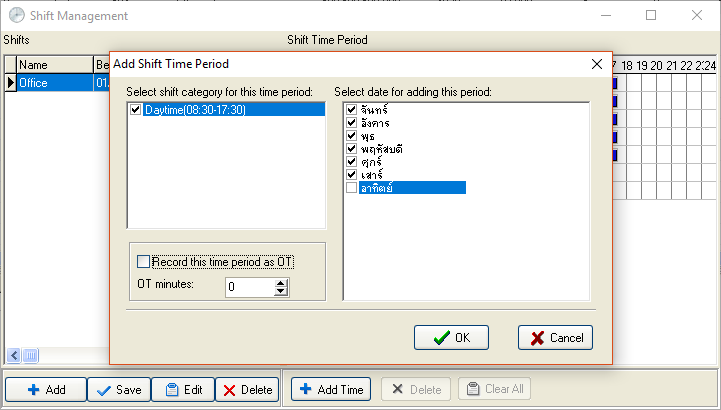
When the setup is complete, the system will display the configured information
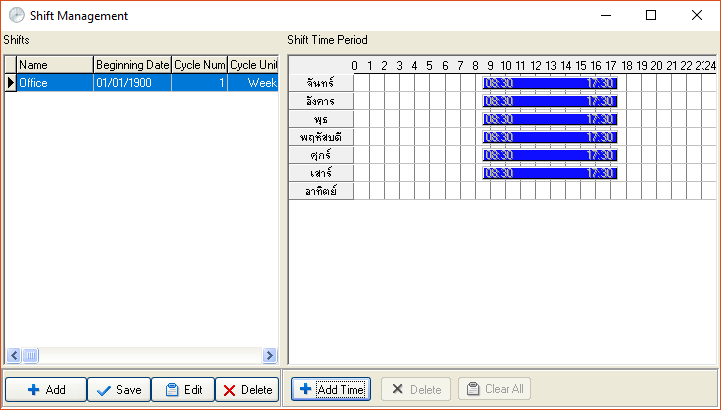
Coming to the final topic, topic 3: Take the time + date information and assign it to employees
3.Employee schedule (Set employee work schedule)
Select the Employee schedule menu to set work schedules for employees
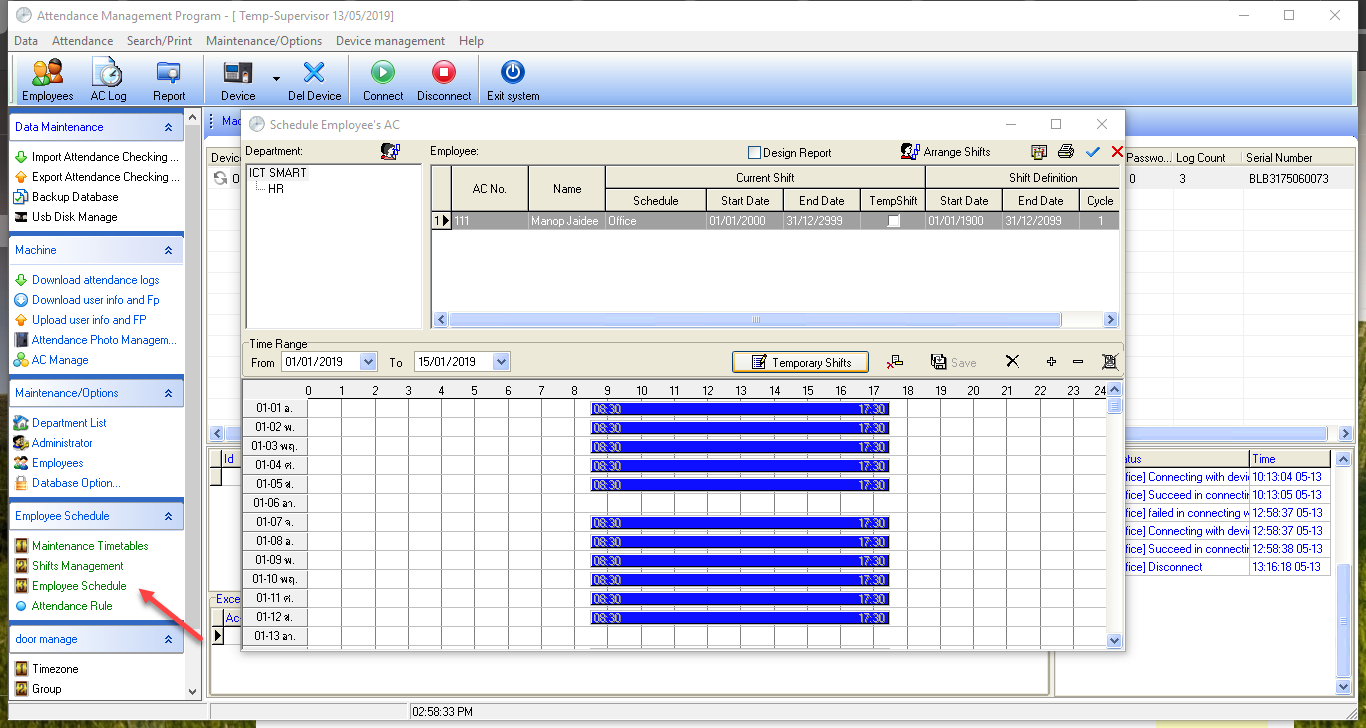
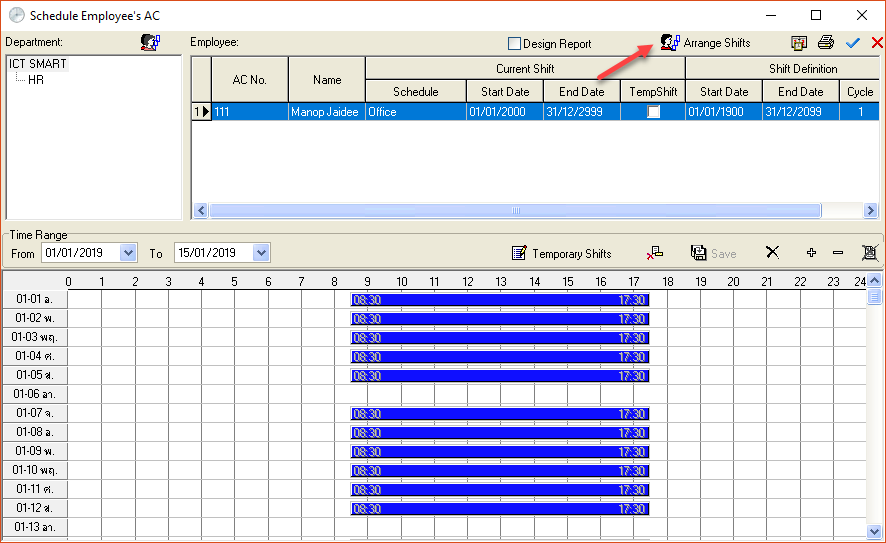
Select the employee you want to set a schedule for, then select Arrange Shifts
Click the + sign to add the employee's work schedule
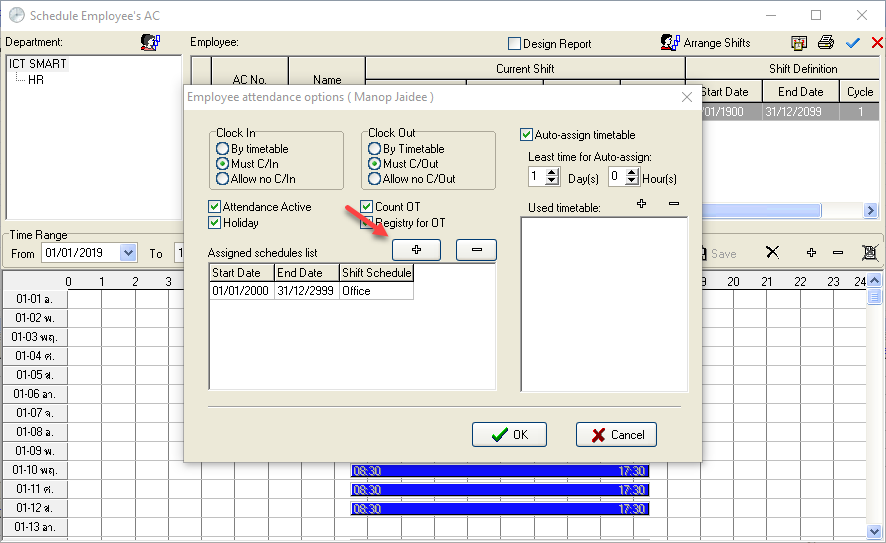
The system will display all available work schedules in the system
Note The topic in the red box is the time period for setting the employee's work schedule. For example, this employee's schedule is from 01/01/2019 to 15/01/2019
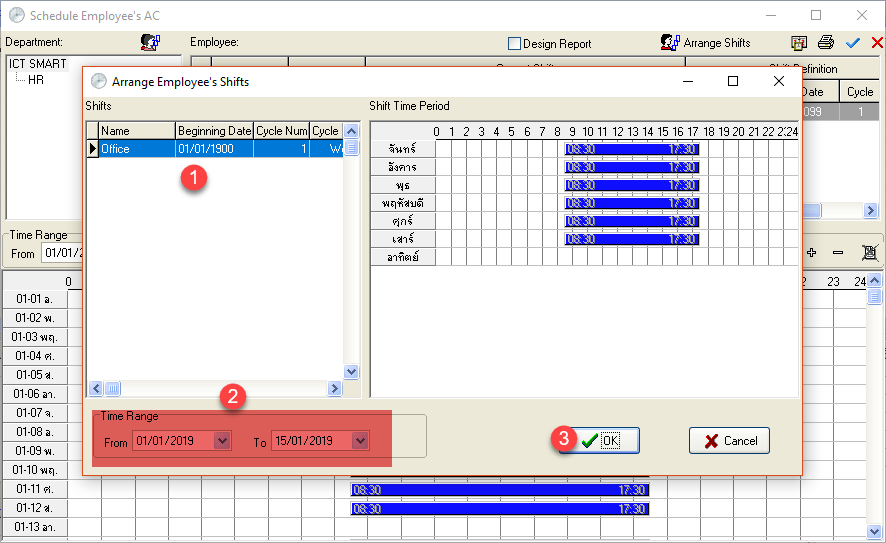
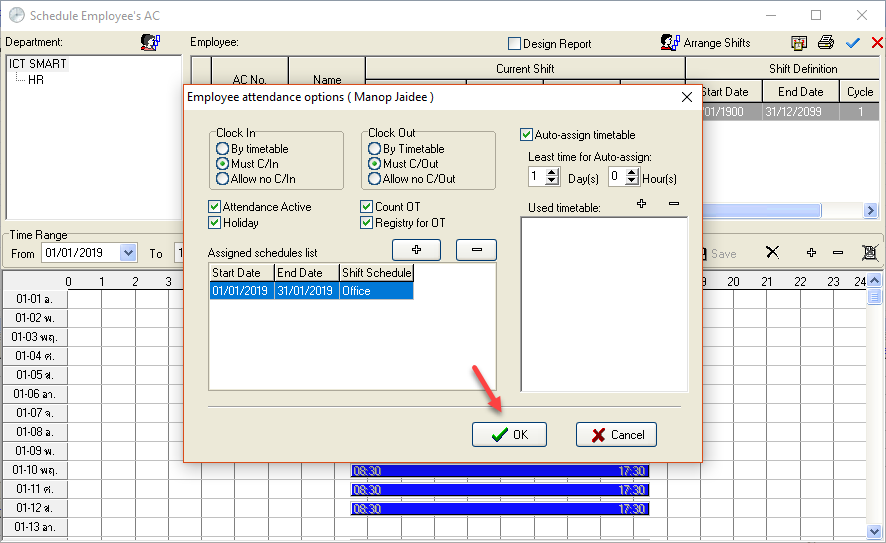
Once setup is complete, click the OK button to finish the employee work schedule setup process
Promotion for facial recognition scanner, fever detection, or detection of people not wearing face masks. Interested inquiries contact 02 726-7771-2 ext. 613 Mr. Natthavuth