How to Create a Database and Add Scanner Devices in the Program
- Double-click on the program icon to launch it
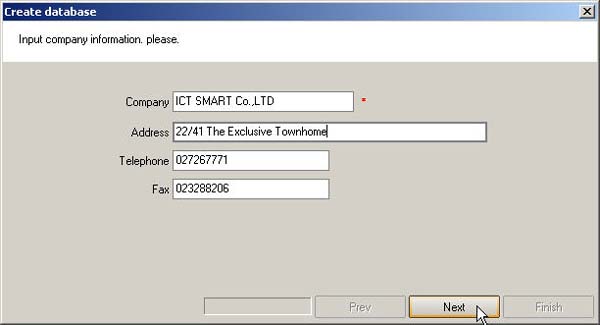
Then enter the company details in this window and click the Next button
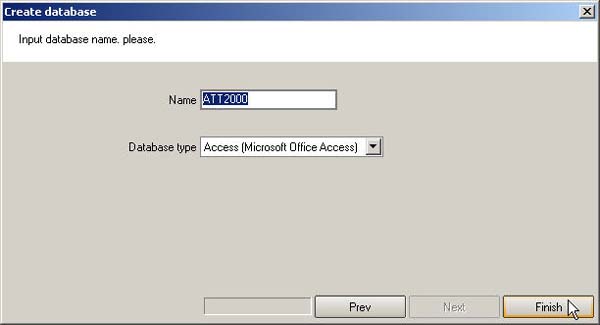
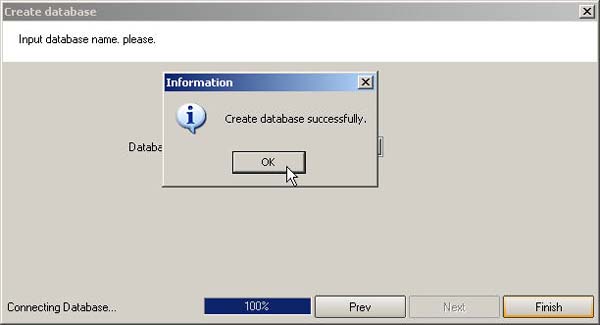
- After creating the database successfully, click the Finish button
- Then a message will appear indicating that the database has been created successfully. Click the OK button
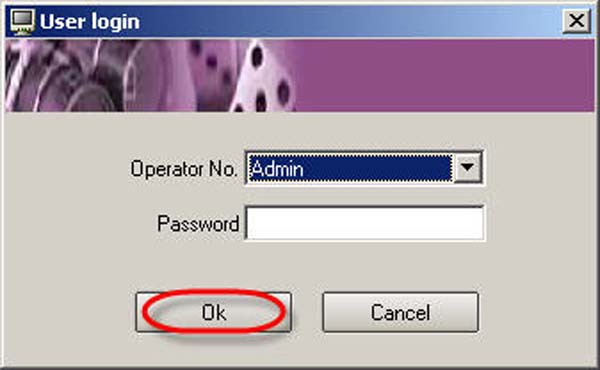
- Then the User login window will appear. You do not need to enter a password, just click the OK button
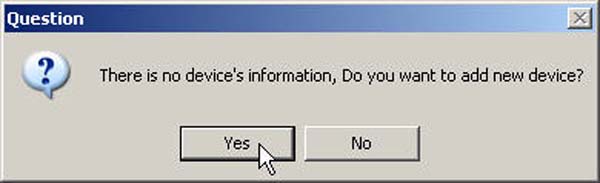
- Then a message will appear asking you to add a scanner device. Click the Yes button
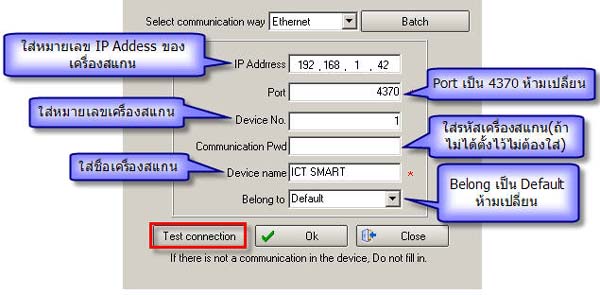
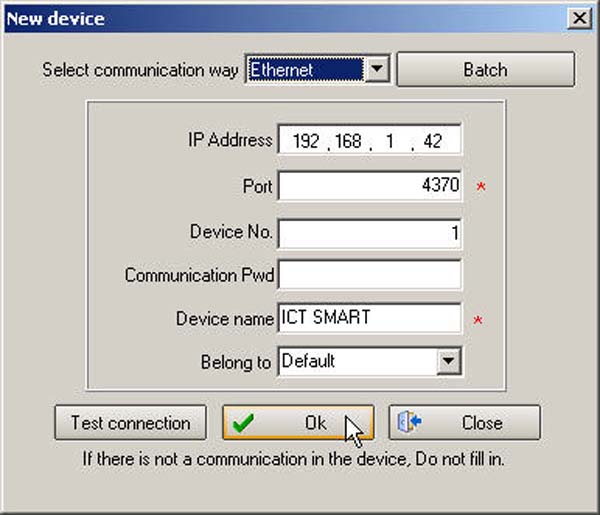
- Then enter the various information to add the scanner device and click the Test connection button
to test the scanner device addition
- If the scanner device is connected successfully, a message will appear saying Test connection successfully. Then click the OK button
(In case the scanner device cannot be connected, please verify that you have entered the information correctly
or check the LAN system connecting the scanner device and the computer)
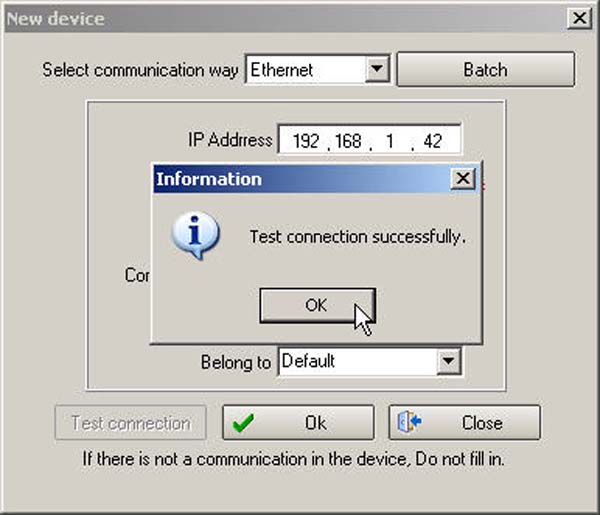
- Then click the OK button again
- Click the OK button again after a message box appears indicating that the new scanner device has been added successfully
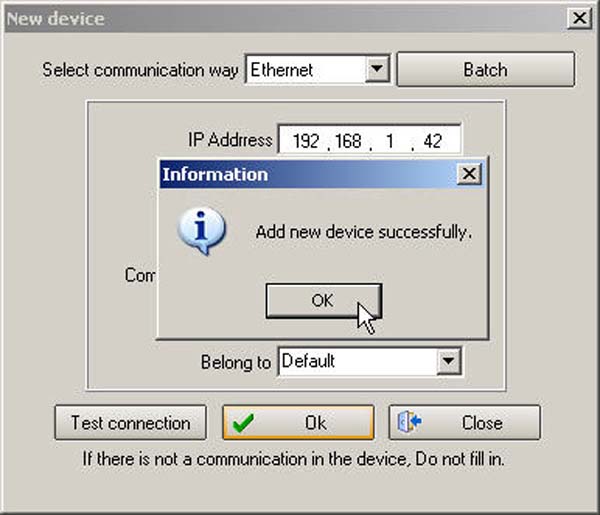
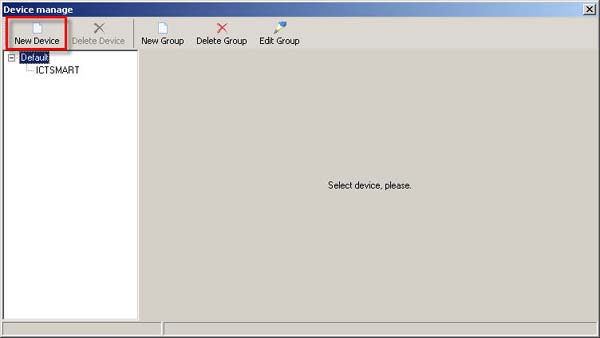
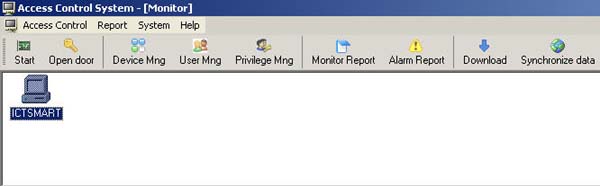
- Then click the Close button and the list of scanner devices will be displayed as shown in the image