How to Enroll New Fingerprints for Existing Users in Case of Fingerprint Issues
- Go to User Mng menu
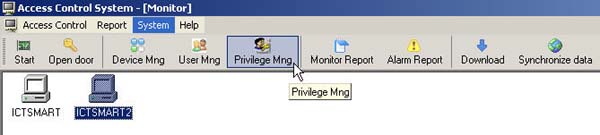
- Delete the fingerprint of the user with the problem from the scanner device first
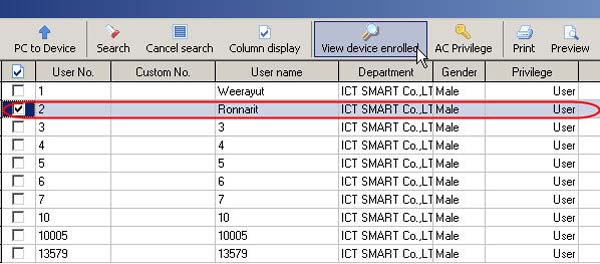
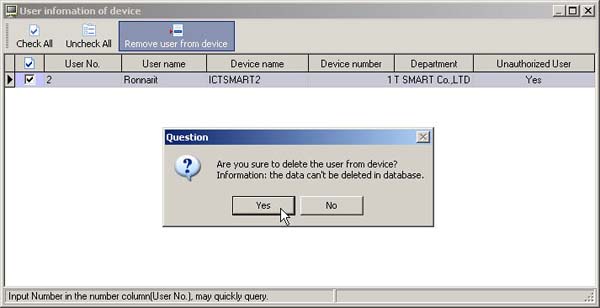
- Check the checkmark next to the user you want to delete, then click Remove user from device. The user data will be deleted from the scanner
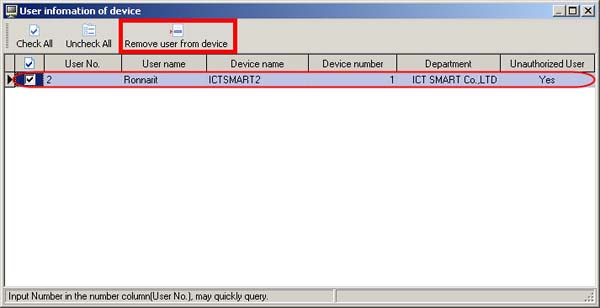
- The program will then ask if you want to delete the user. Click Yes to proceed with deletion
- Then store the new fingerprint in the scanner using the same user ID number or ID
- After storing the fingerprint for the user in the scanner, then retrieve the newly recorded fingerprint data
from the scanner to the computer with the following steps
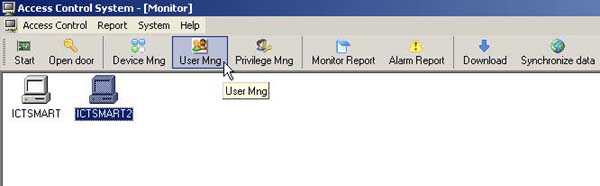
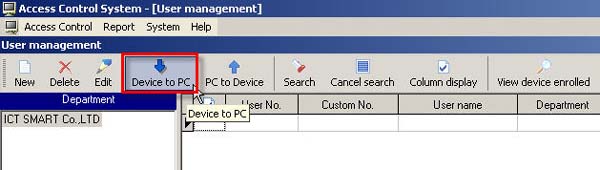
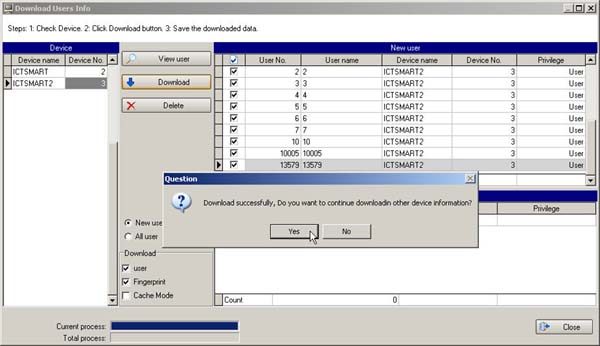
- Then select Device to PC menu
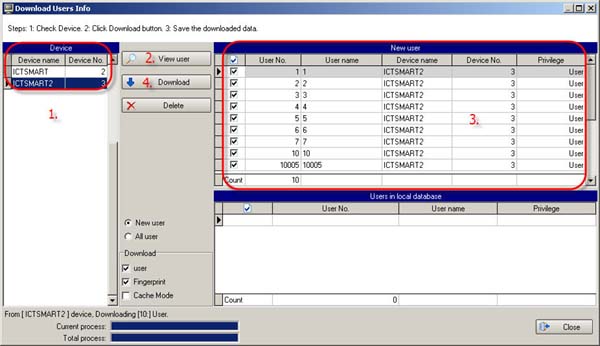
1. Select the scanner device you want to retrieve data from
2. Click View User button to view the list of users on the scanner
3. Check the checkmark next to the user whose data you want to retrieve from the scanner
4. Then click Download button
- A message will then appear asking if the data has been successfully retrieved from the scanner and what you want to do next
If you want to continue, click Yes. If you don't want to continue, click No to close this window
After retrieving the newly stored fingerprint data to the computer, the next step is to send the new
fingerprint data to other scanner devices (if there is more than 1 device)
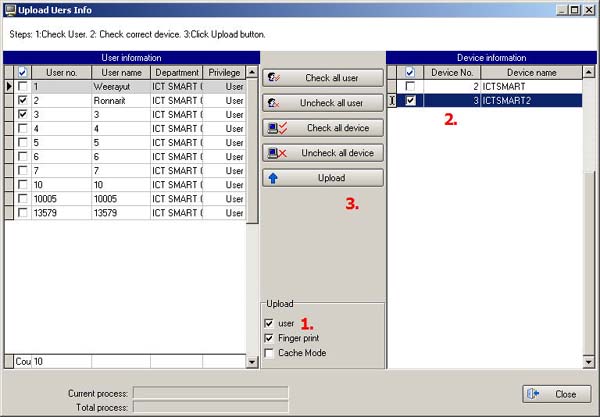
Select the user and click PC to Device menu
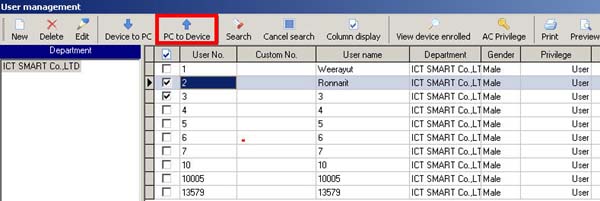
1. Check the checkmark next to the Finger print header
2. Check the checkmark next to the scanner device list
3. Click Upload button