How to Set Access Control Permissions for Each User on Door Entry/Exit
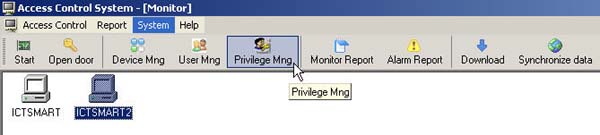
- Select at Privilege Mng
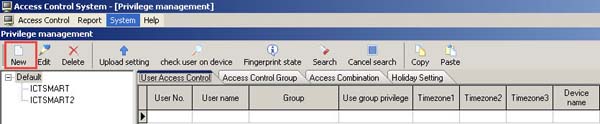
- Then select at New
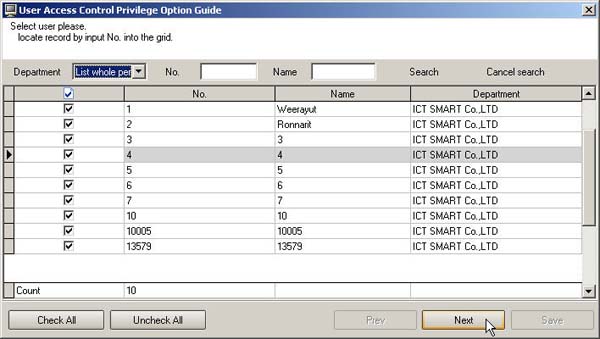
- Check the checkmark next to the user list for whom you want to assign door access permissions
( If you want to select all users, click the Check All button ) Then click the Next button
- Select the scanner device to which you want to send the user's door access permissions
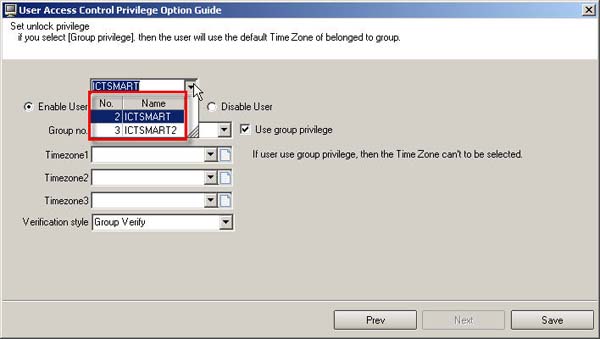
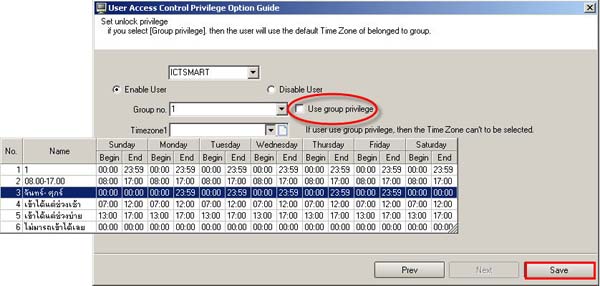
- Uncheck the checkmark at the Use group privilege section
- Then select the Time Zone range that has been set for the user, then click the Save button
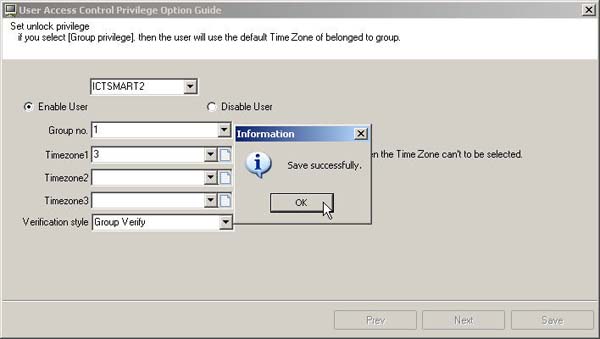
- Then the program will display a Save successfully message. Click the OK button
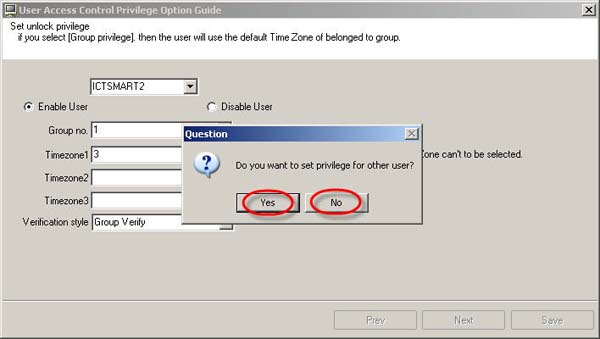
- Then the program will ask if you want to manage other users or not. If yes, click Yes; if not, click No
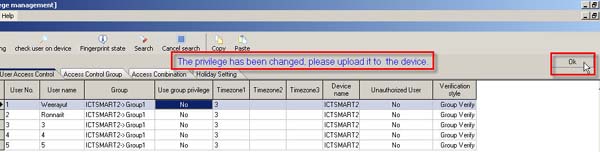
- Then a warning message will appear asking you to upload the data to the scanner device
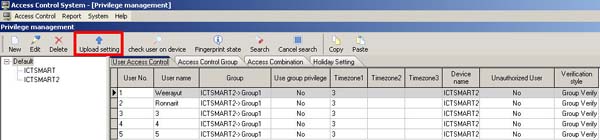
- After that, go to the Upload Setting menu to send the door access permissions to the scanner device
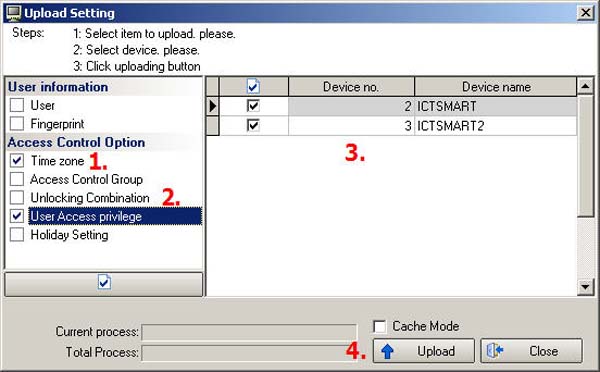
1. Check the checkmark at the Time Zone section
2. Check the checkmark at the User Access Privilege section
3. Select the scanner device to which you want to send the door access permissions
4. Click the Upload button
After that, click the Close button
- Then the user's door access permissions have been successfully sent to the scanner device