How to Troubleshoot Various Symptoms of the Device
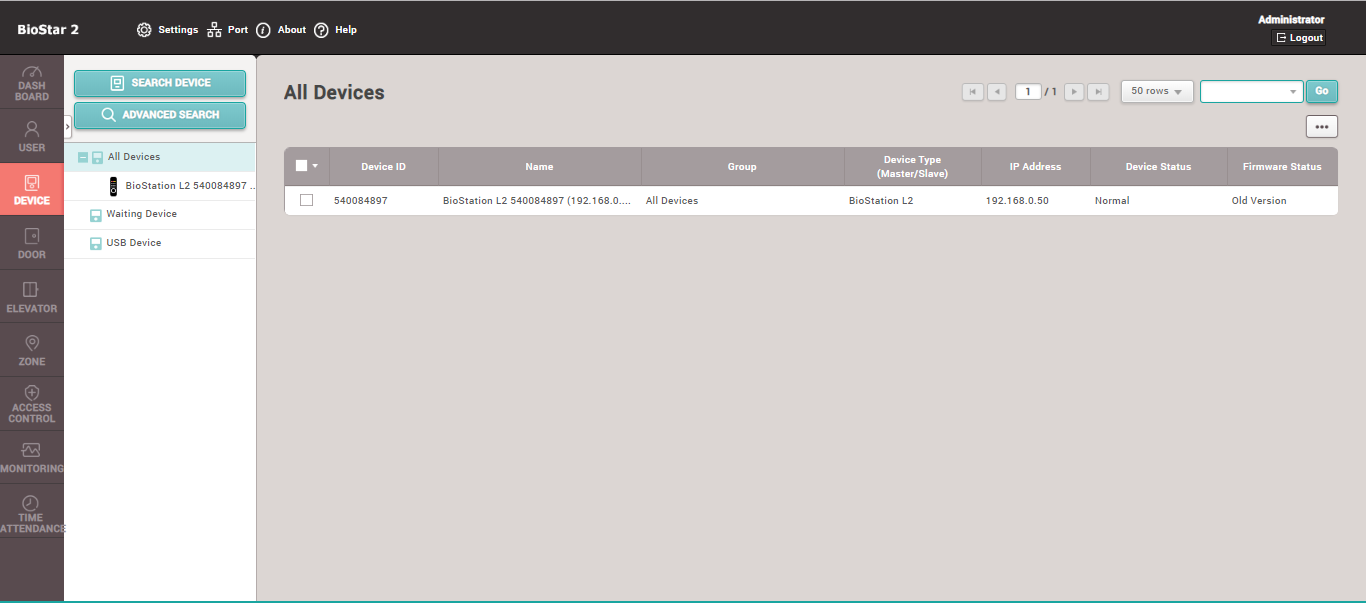
If the Device status is normal, you can check it in both formats as follows:
1. The status from within the BioStar 2 program at the Device Status field will show as Normal
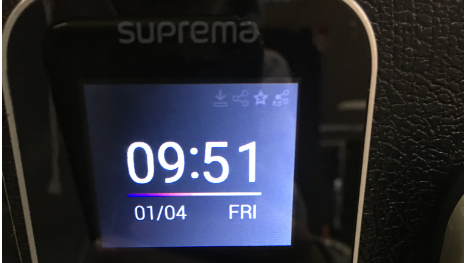
2. The status on the Device screen will display symbols as shown in the image: three circles representing normal LAN cable status, and an S-shaped star representing normal connection to the Server device
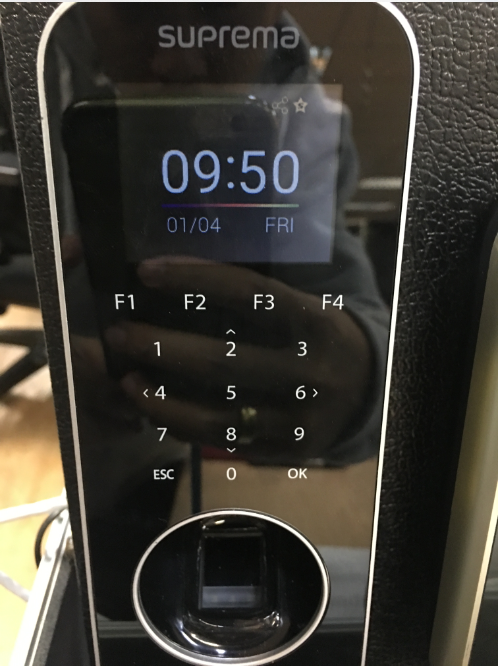 3. If the S-shaped star is missing as shown in the image, go back to check the BioStar2 Program to see what the device status is. If the status shows normal, you must go back to the Device screen at the Network/Server menu to check if the settings are correct
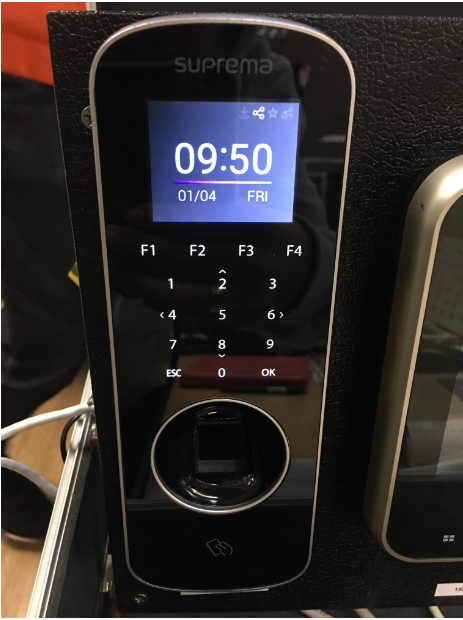
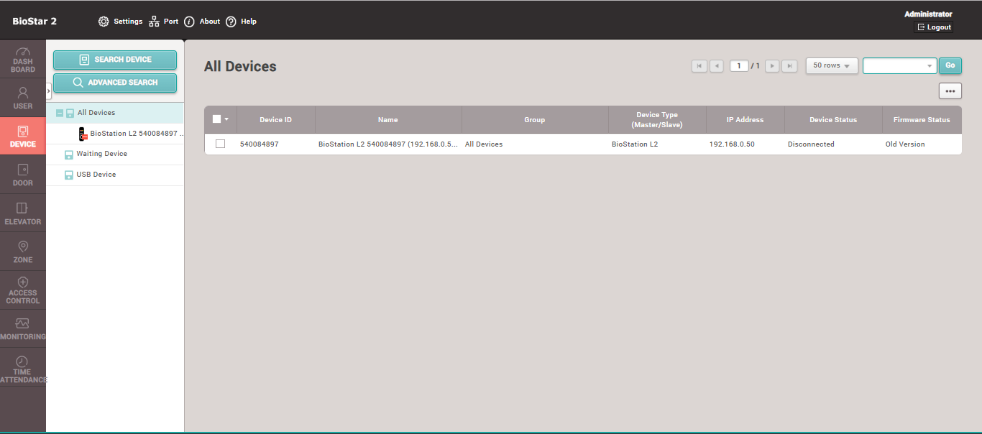
4. If the status in the BioStar2 Program shows Device Disconnect as in the image, check by Pinging the Device IP such as Ping 192.168.1.201 to verify if it is found or not. If not found, it indicates a problem with the LAN cable or the Device IP has changed. Check the device first at Device / Network to see if the IP is correct