Various Configuration Methods on the SO-200 Scanner
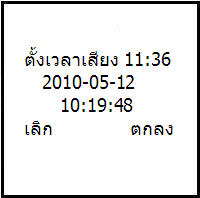
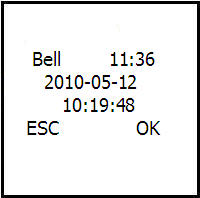
SearchPress the Time Set button. This page allows you to set the alarm time for what time you want the alarm to sound.
You can also set the date and time. After setting, press the OK button and there will be a confirmation sound.
That the save was successful. The values set have been saved properly.
Click the DalUser button and enter the user ID number and press the OK button to confirm
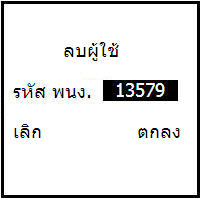
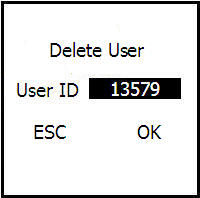
Then the machine will give an audio confirmation that the record was successful and the user's fingerprint
has been deleted from the scanner
Press the PW/Card button and the system will ask if you want to save a new record
(If there is already a fingerprint saved, select Cancel by pressing the ESC button
then enter the ID number and press the OK button followed by entering the desired password)
For users who do not yet have a fingerprint, press the OK button to save a new record


Then enter the user number, not exceeding 5 digits
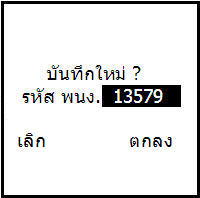
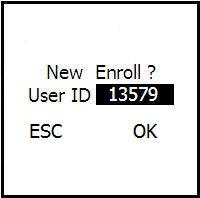

Enter a password for the user, not exceeding 5 digits
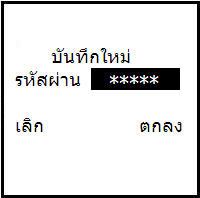
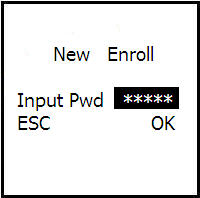
Then enter the same password again to confirm the password
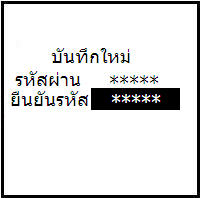
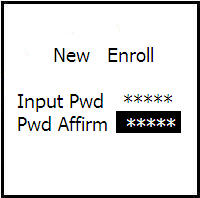
Then press the OK button to save the password
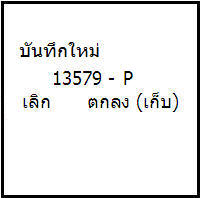
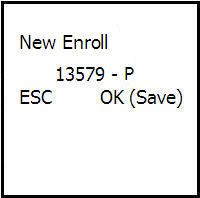
The system will ask if you want to continue. If not, press the ESC button. If you want to continue, press the OK button


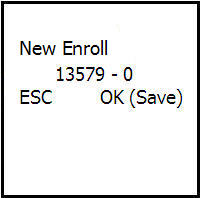
Press the Enrooll FP button on the scanner front panel
The device will ask if you want to save a new record. Press the OK button to confirm.

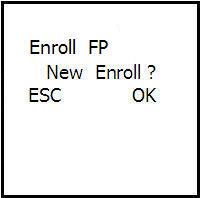
Then enter the employee number. No more than 5 digits.
Then press the OK button to confirm.
Then place your finger on the scanner (it is recommended to use the index finger)
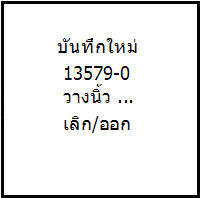
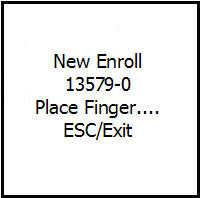
Then place your finger again
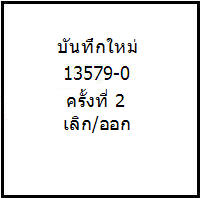
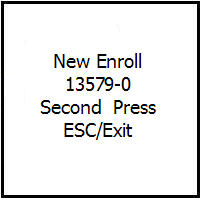
Place your finger for the 3rd time
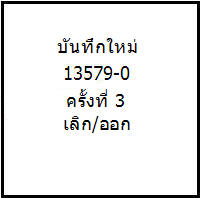
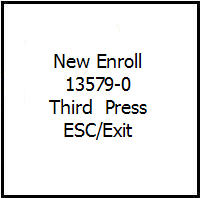
Then the device will prompt you to save. Press the OK button.
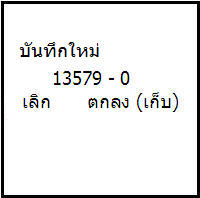
Then the device will ask if you want to continue. If you want to save a backup fingerprint, press the ESC button. Or if you want to save a new person's fingerprint, press the OK button.