WarpXClient Software Usage
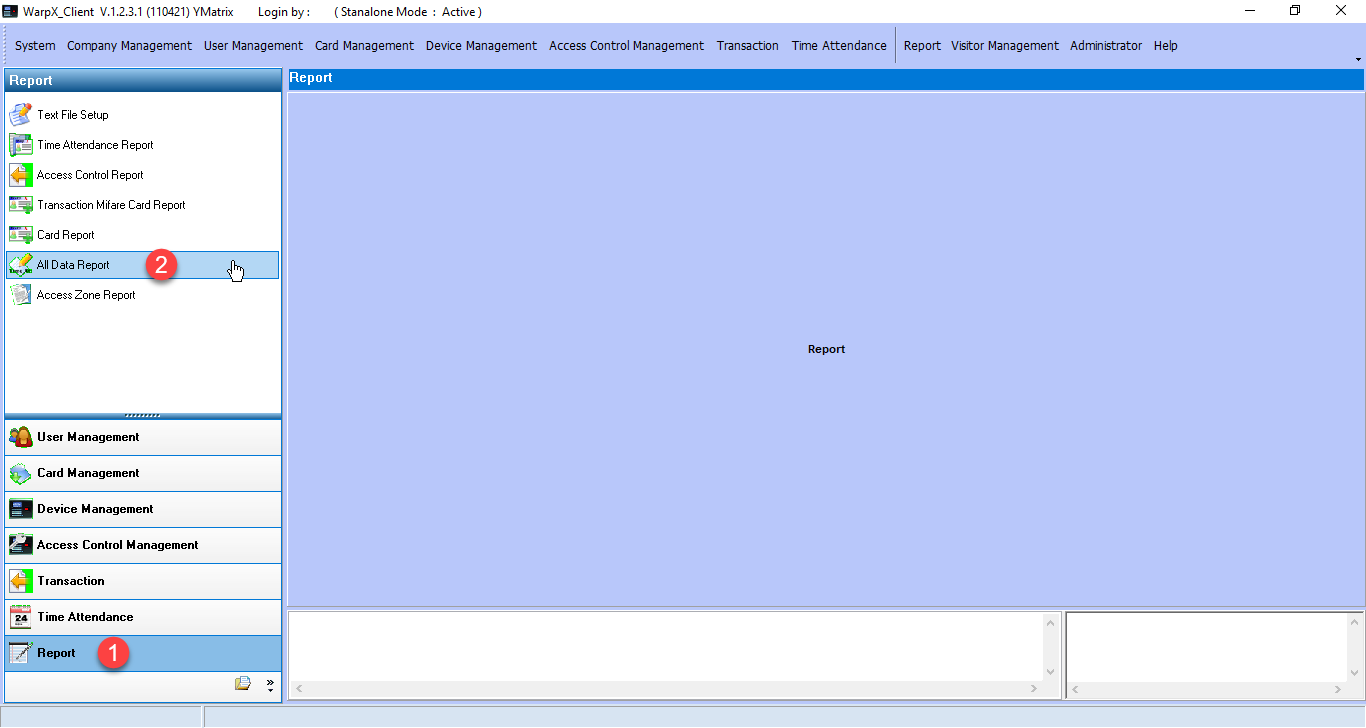
Search1. Select menu Report > All Data Report
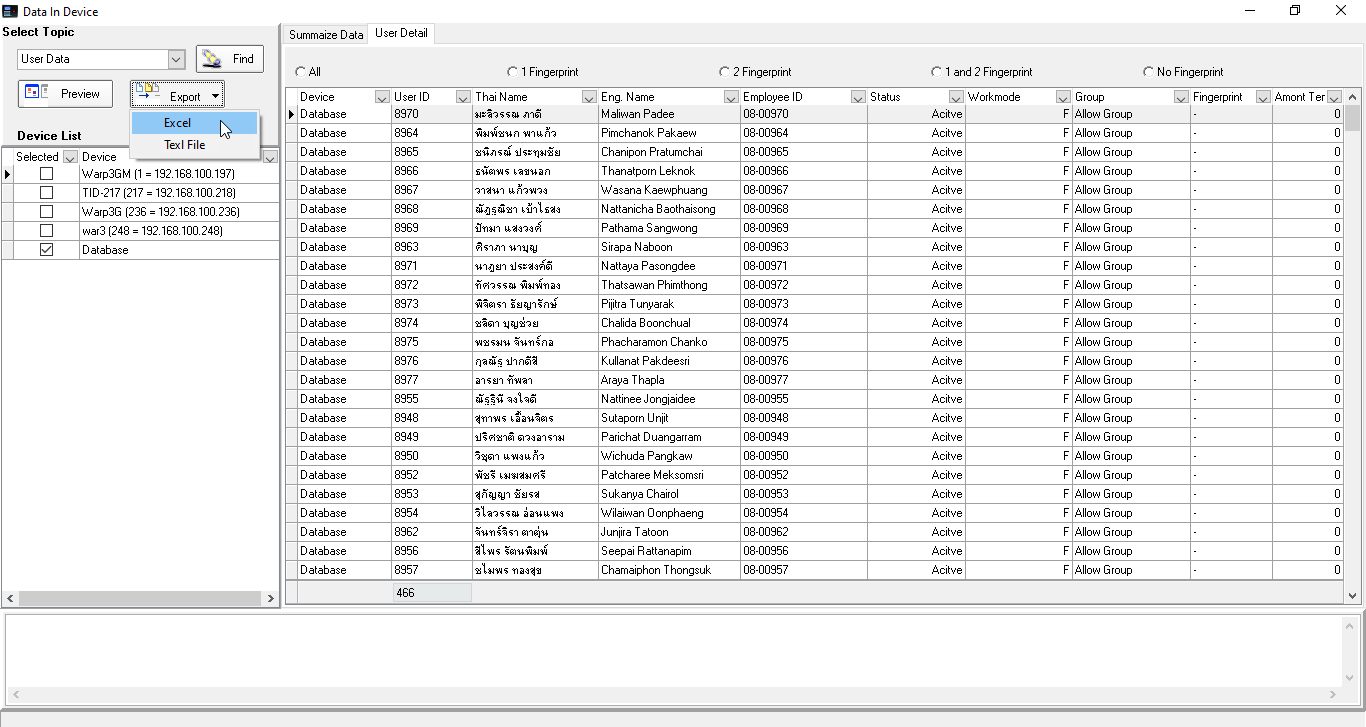
2. Select User data > Data > Find to search for information
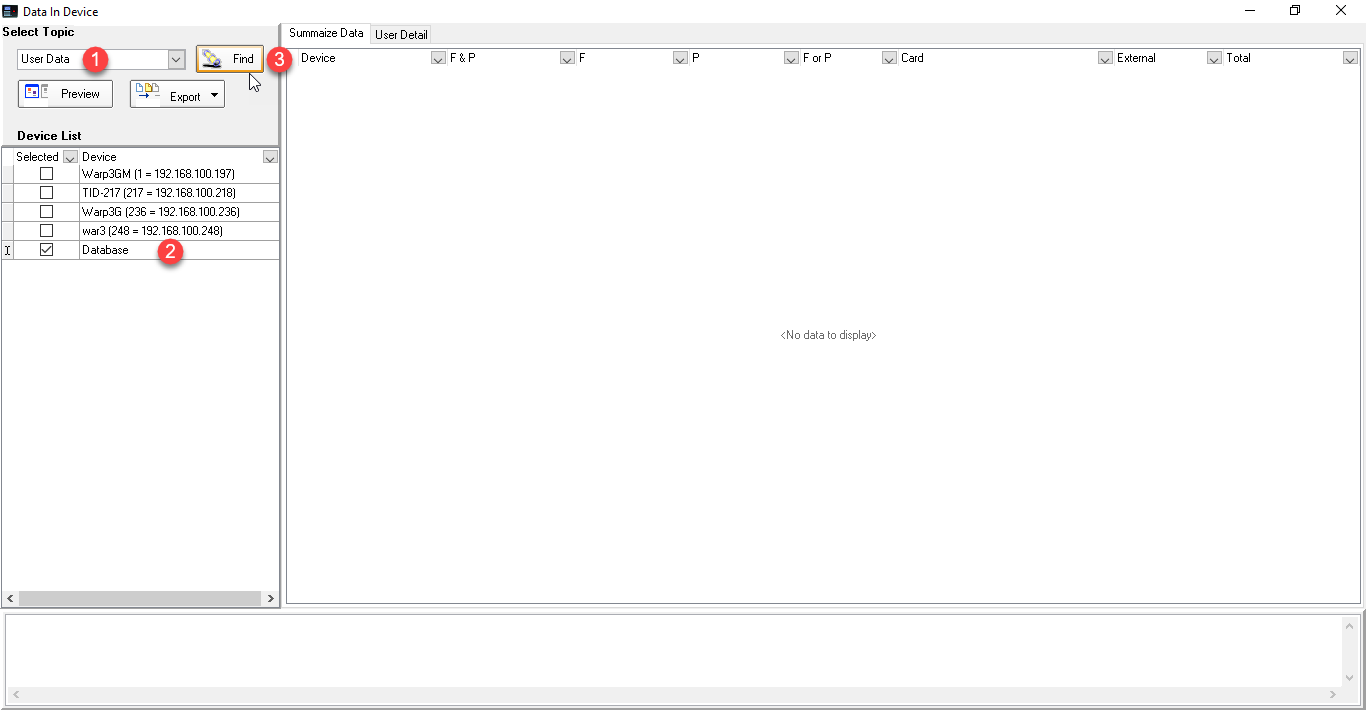
4. Select User Detial > Export to export data
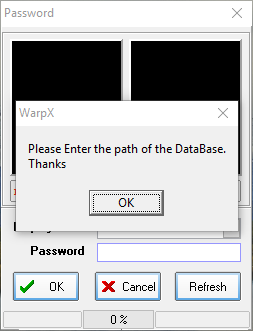
1. Open the WarpXClient program. The system will notify you to configure the database
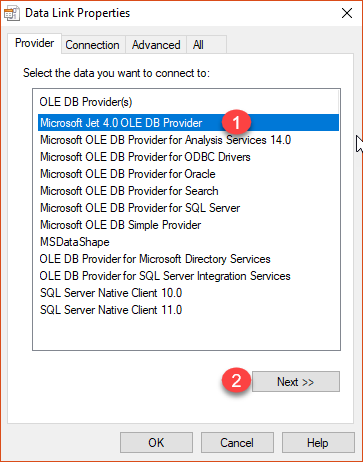
2. Click the OK button to set up, select Microsoft Jet 4.0 OLE DB Provider, then click Next
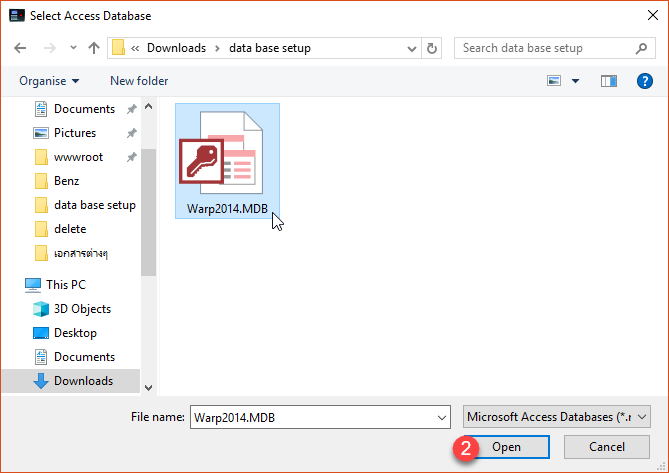
3. Select the database location
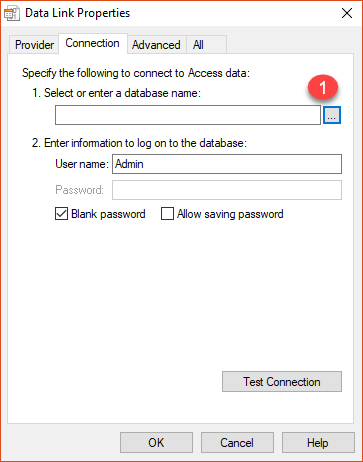
Select the database
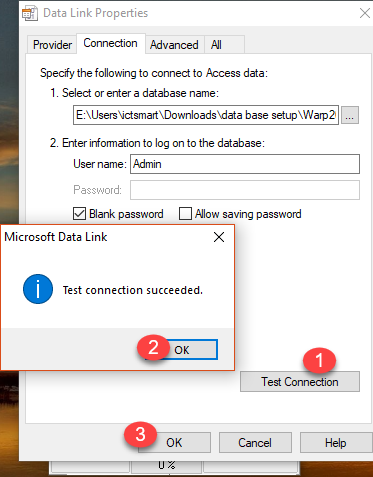
Test the database connection, then click OK
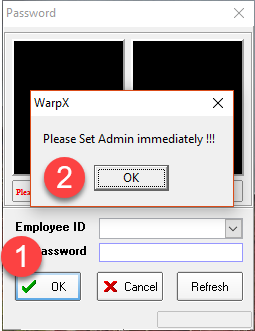
Click the OK button to access the program
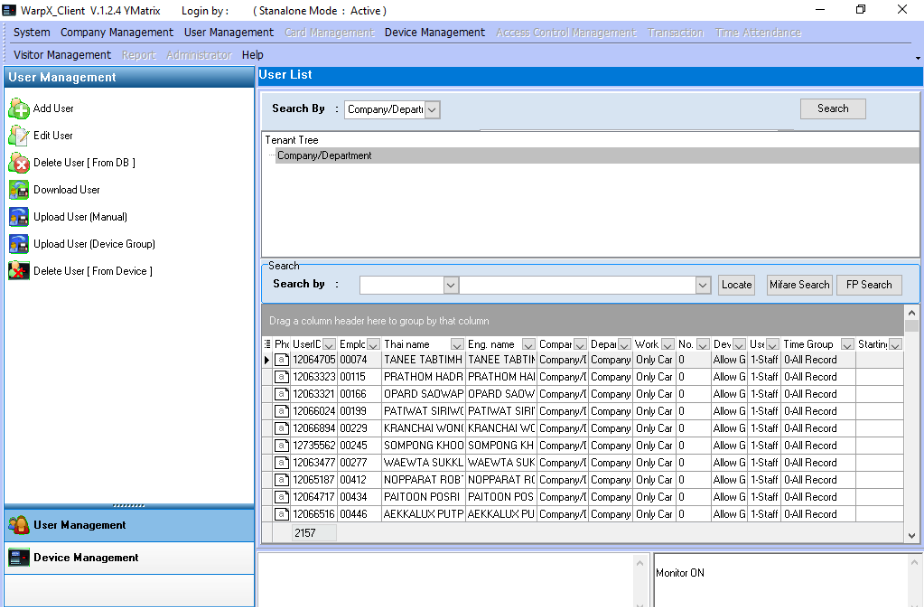
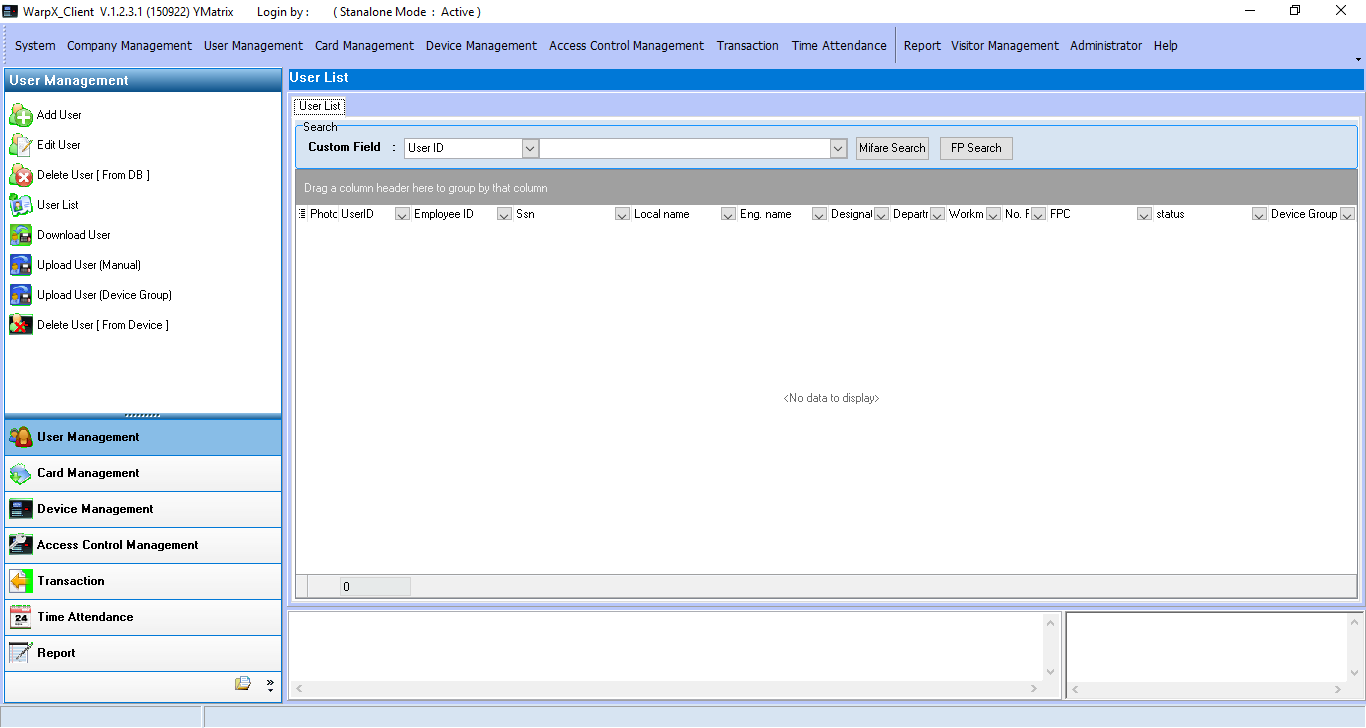
Enter the program menu page
How to install WarpXClient software
1. Double-click the WarpX_Client icon
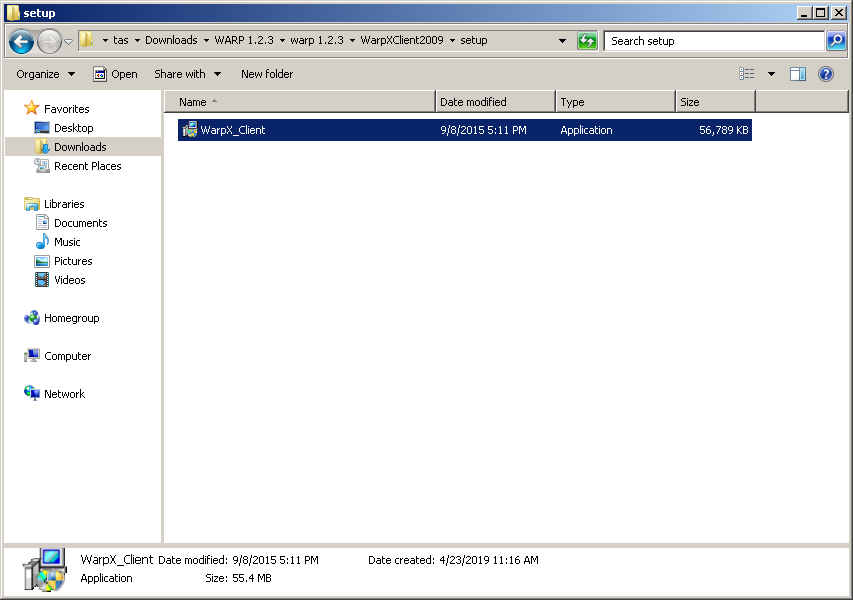
2. Click the Next button
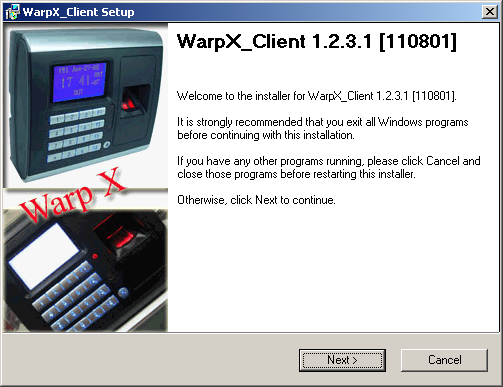
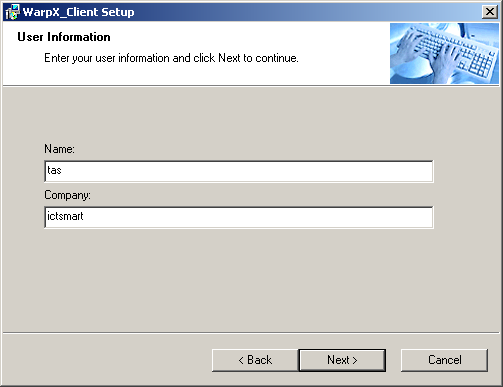
3. Enter your username and company name, then click Next
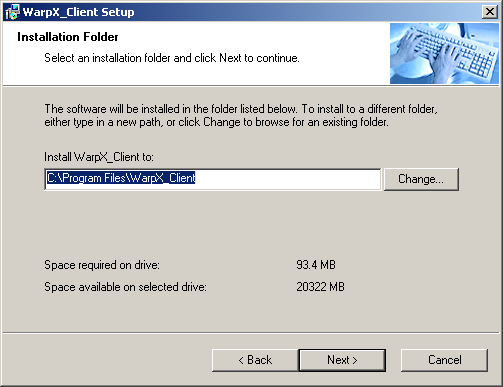
4. Select the installation location, then click Next
5. Click the Next button
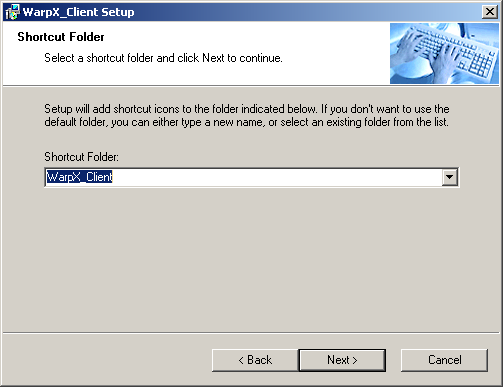
6. Click the Next button
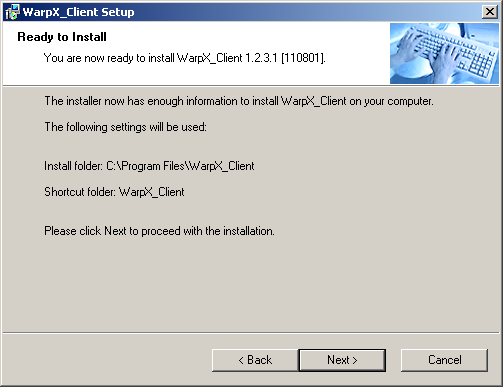
7. Wait for the program to complete the installation
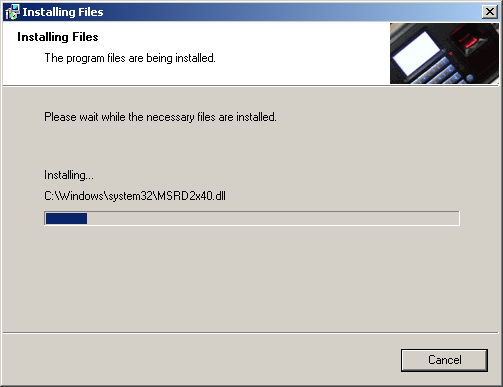
8. Wait for the program installation to complete, then click Finish
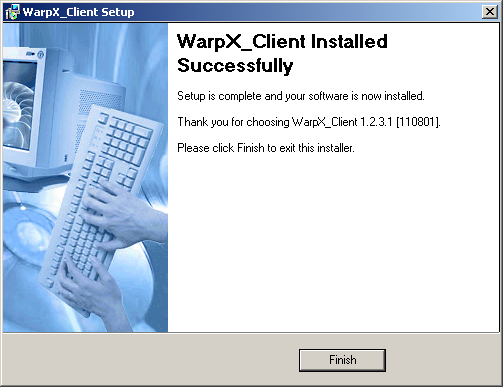
How to Set Up WarpX Client Administrator
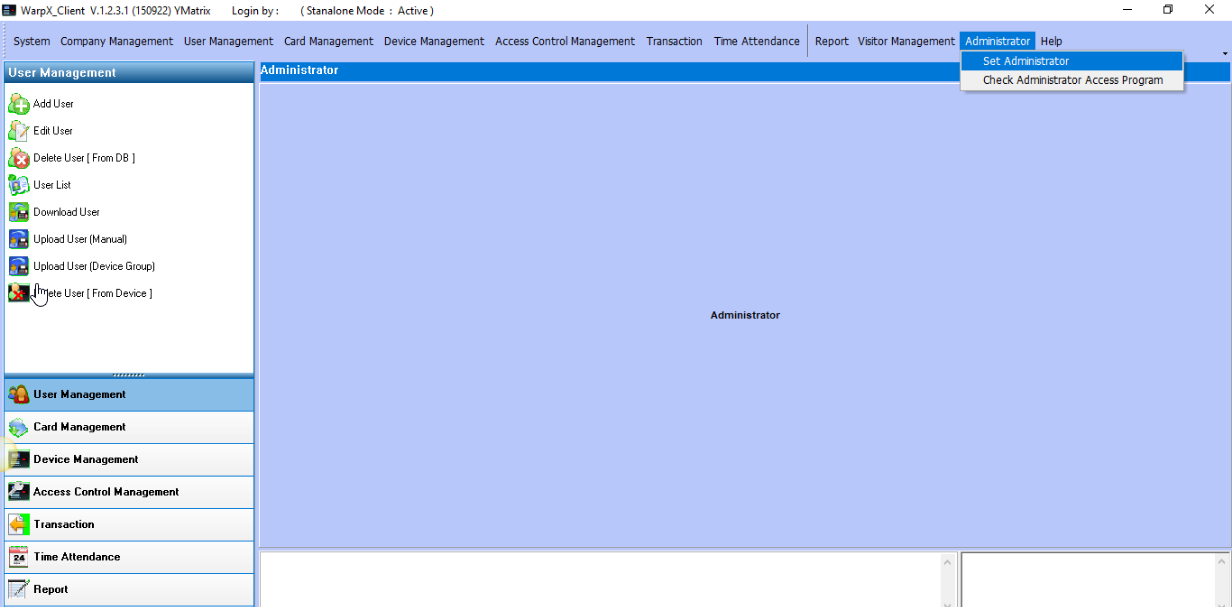
1. Go to Administrator menu > Set Administrator
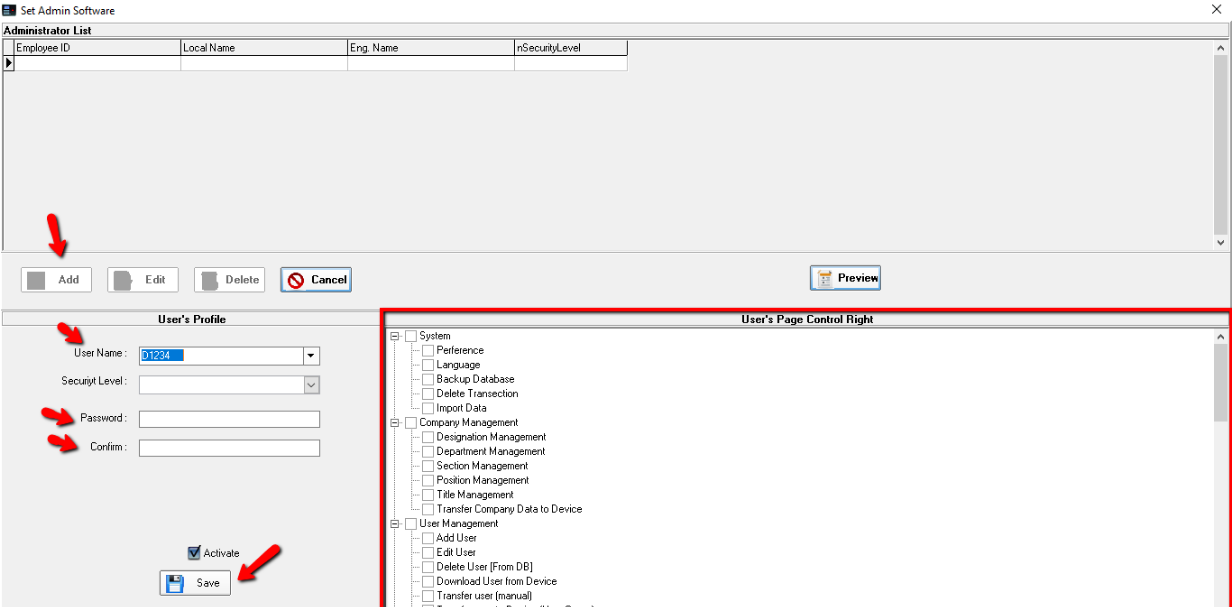
2. Click the Add menu to add a User, enter Password (4-8 digits) Confirm Password. Then on the right side of the system, you will be able to set which menus the User can access.
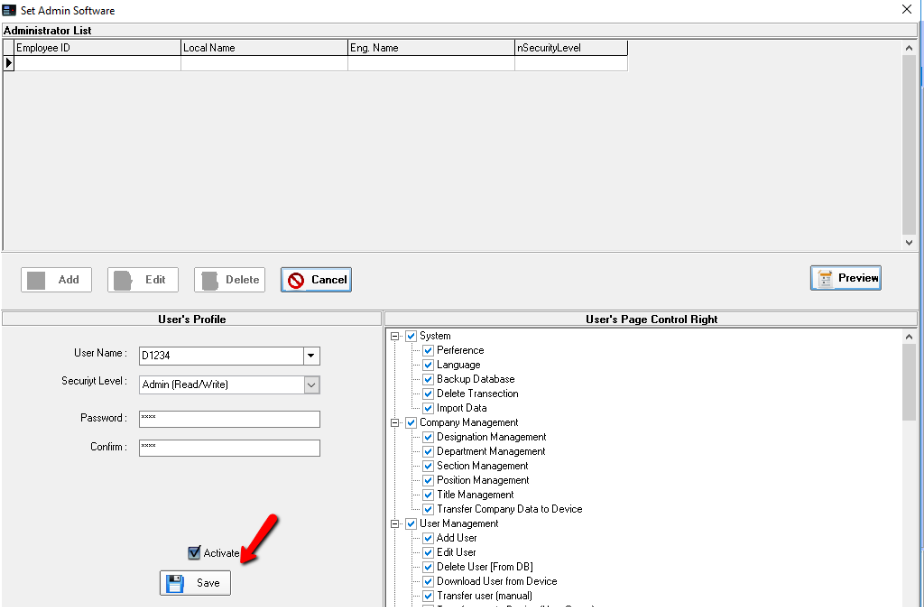
3. When you have finished selecting the menus, click the Save menu.
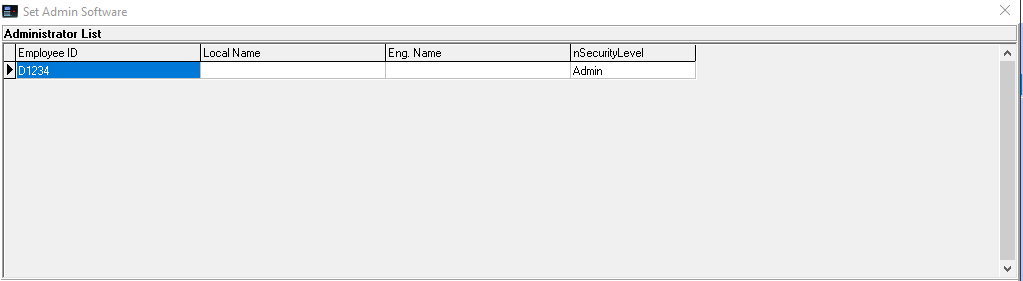
4. When the setup is complete, the system will display a list of Admins in the system.
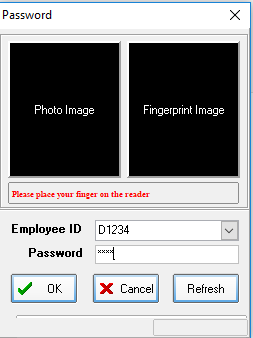
5. If you open the program page again, the system will prompt you to enter the administrator.
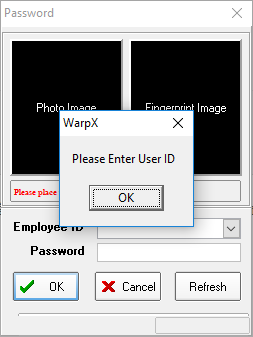
6. Enter the administrator password to use the program.