BioTime 8.0 Software
Search1. Select the Personnel > Organization > Area menu
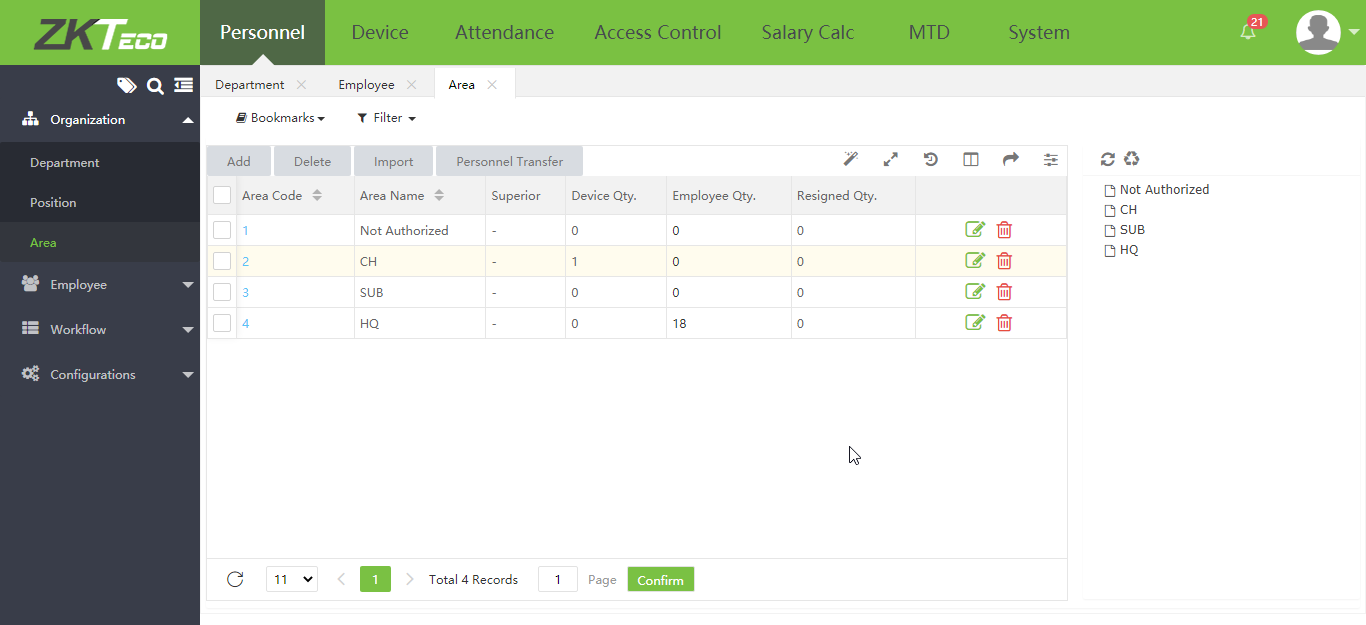
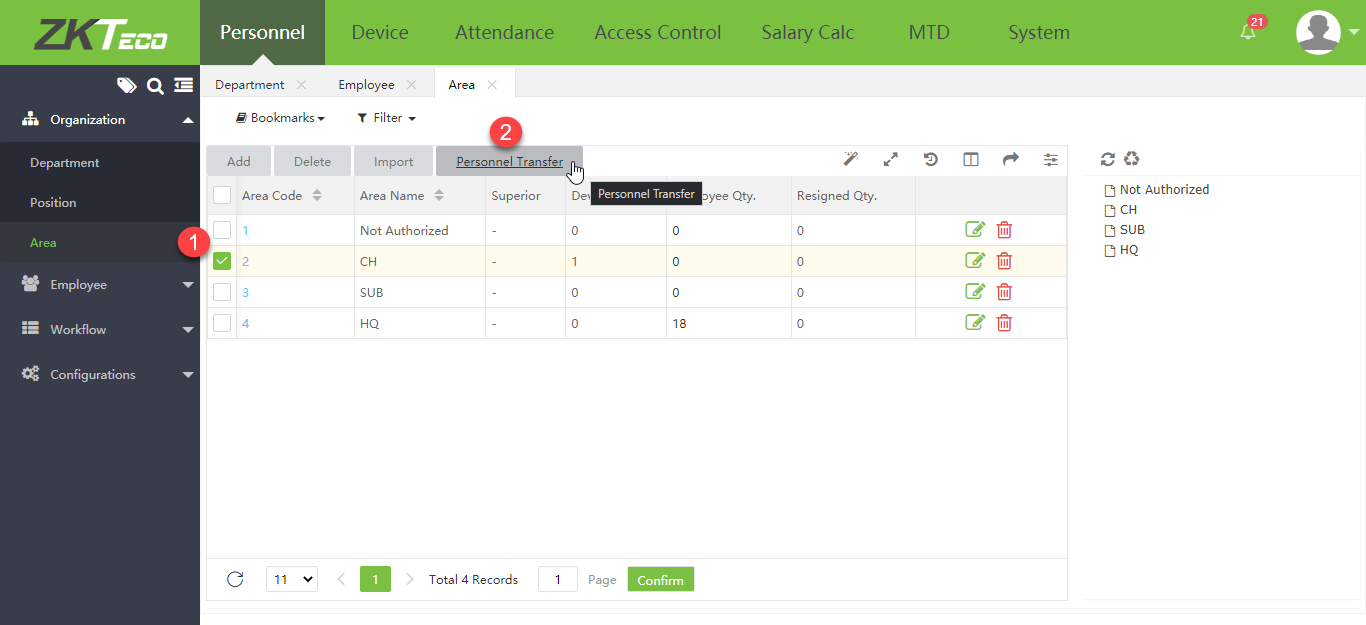
2. Select the Area that you want to transfer employees from, then click Personnel Transfer
3. Select the employees you want to transfer to another Area, then click Confirm
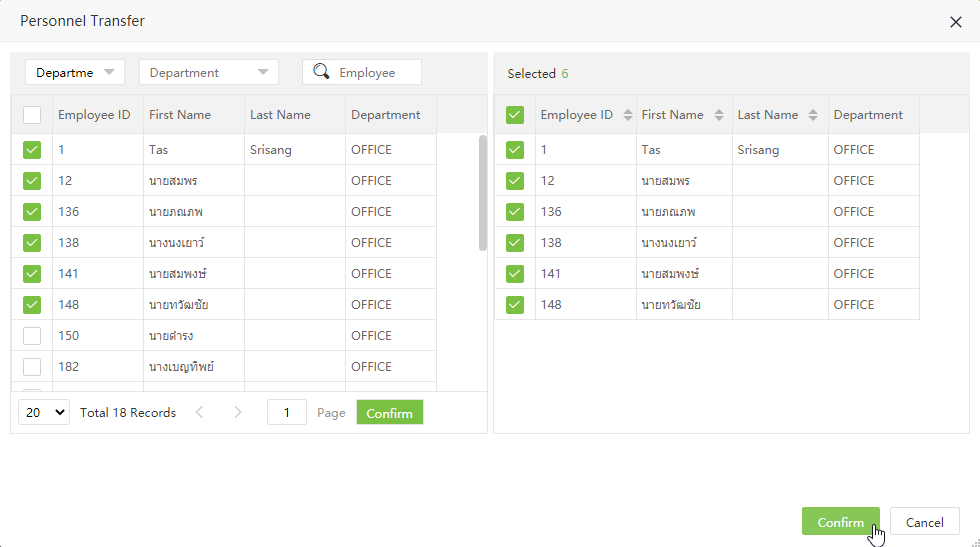
4. Employee Area transfer completed
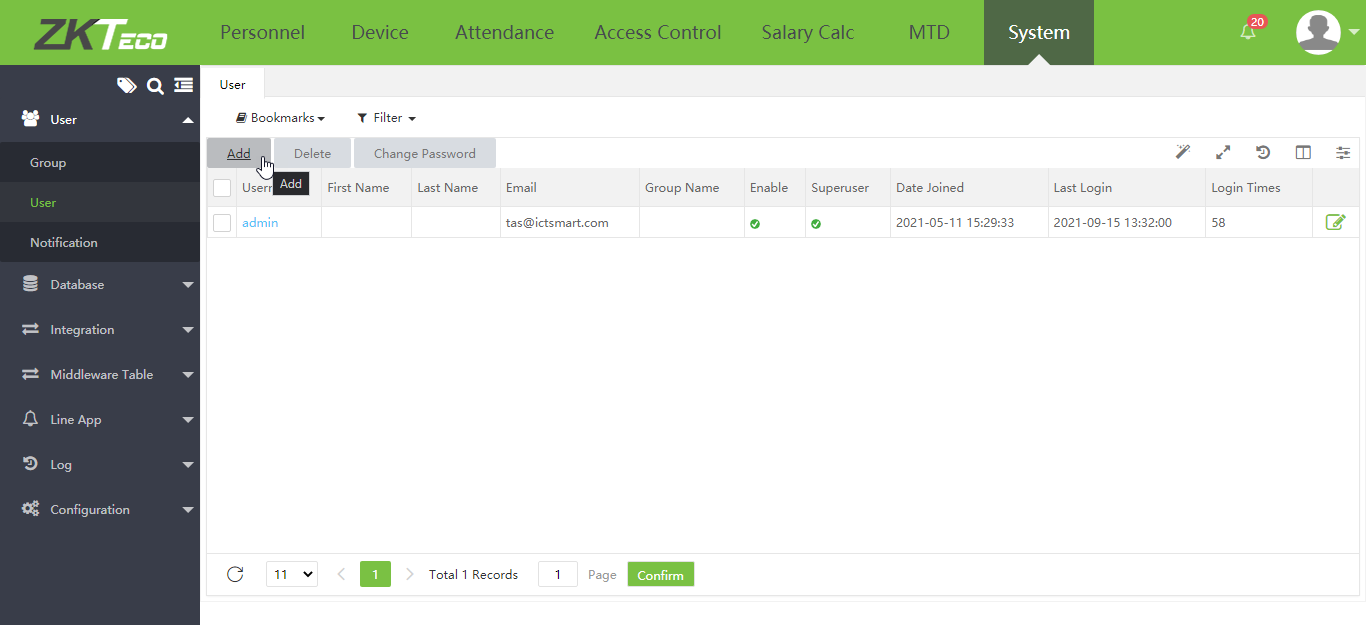
1. Go to System > User > Add to add an administrator
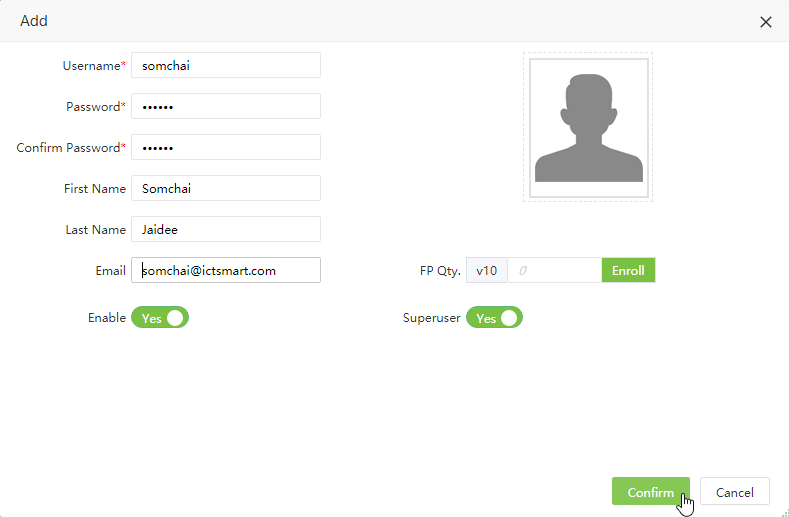
2. Enter administrator details Username/Password *Note Password must contain both numbers and letters. After entering the details, click Confirm
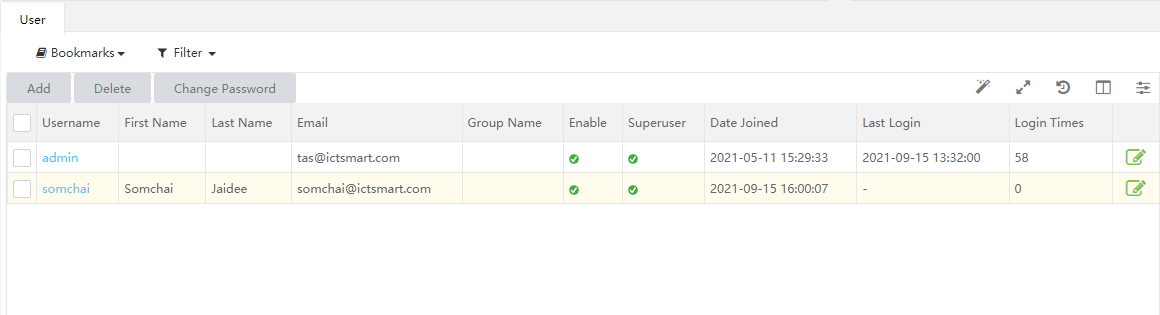
3. Employee information has been added successfully
1. Go to menu System > Data base > Backup
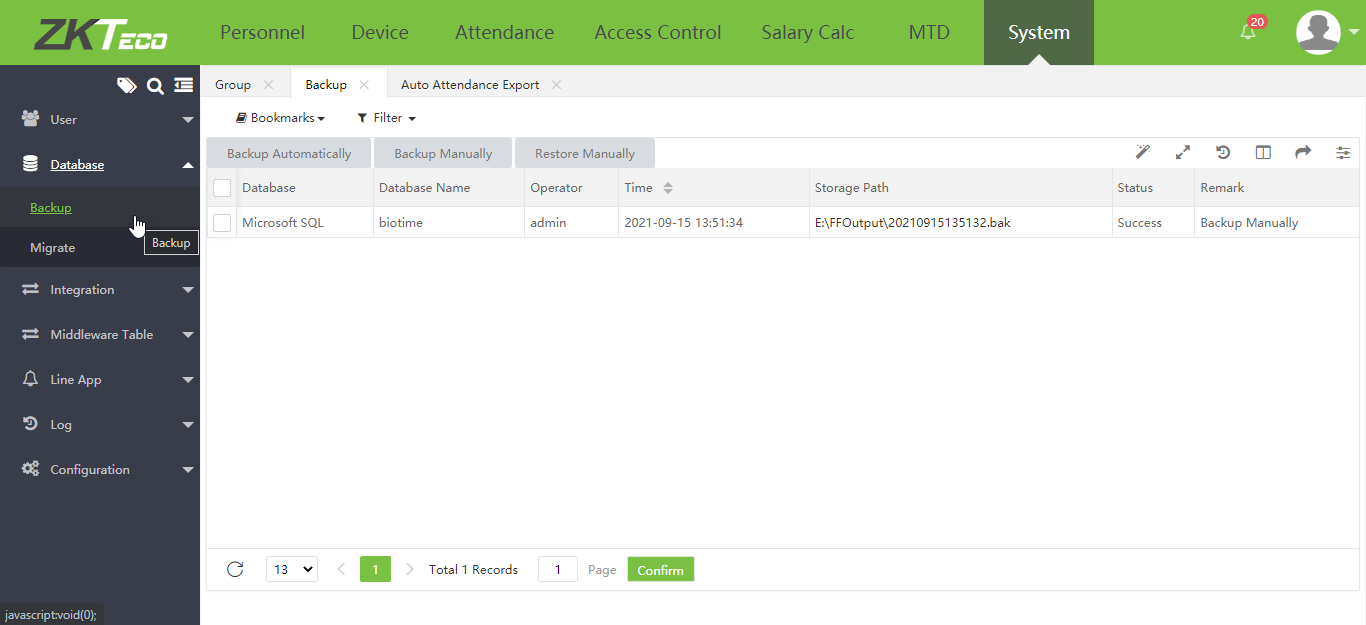
2. The program will display 2 ways to backup the database: 1. Auto Backup and 2. Manual Backup
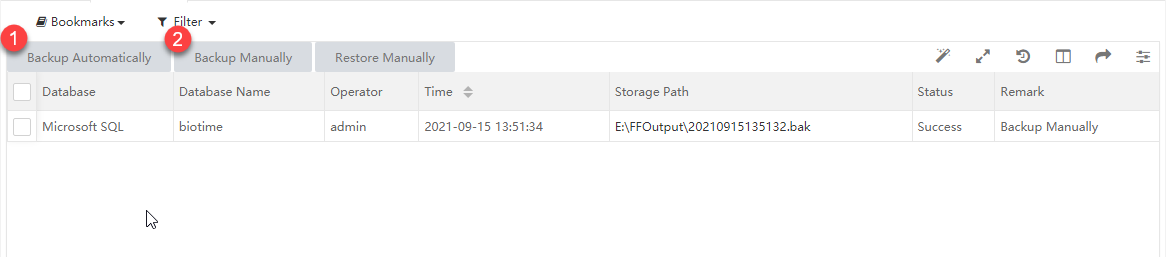
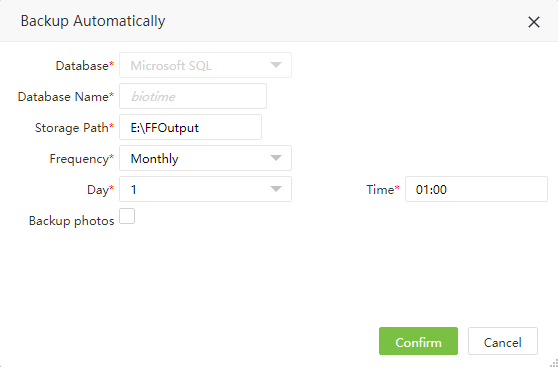
2.1 Auto Backup allows you to choose to backup the database daily/weekly/monthly and select the time for database backup
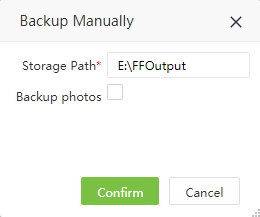
2.2 Manual Backup select the location to backup the database and then press Confirm
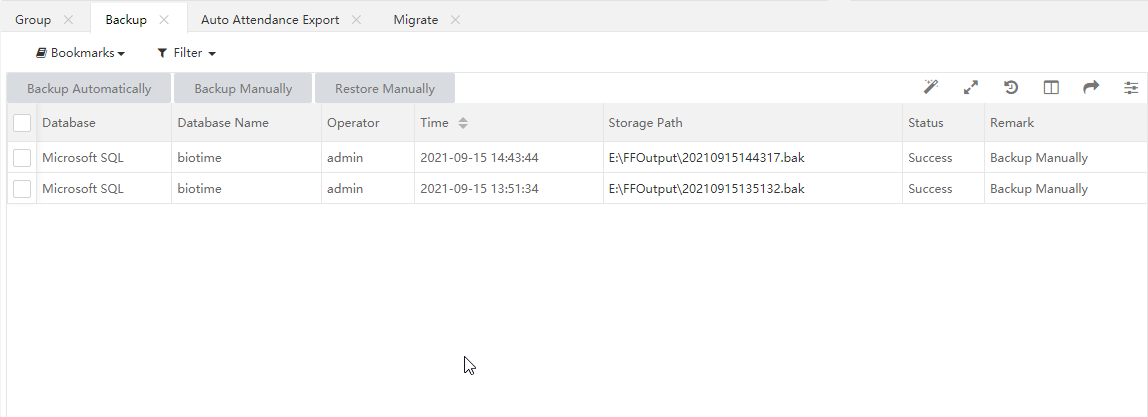
3. Details of database backup
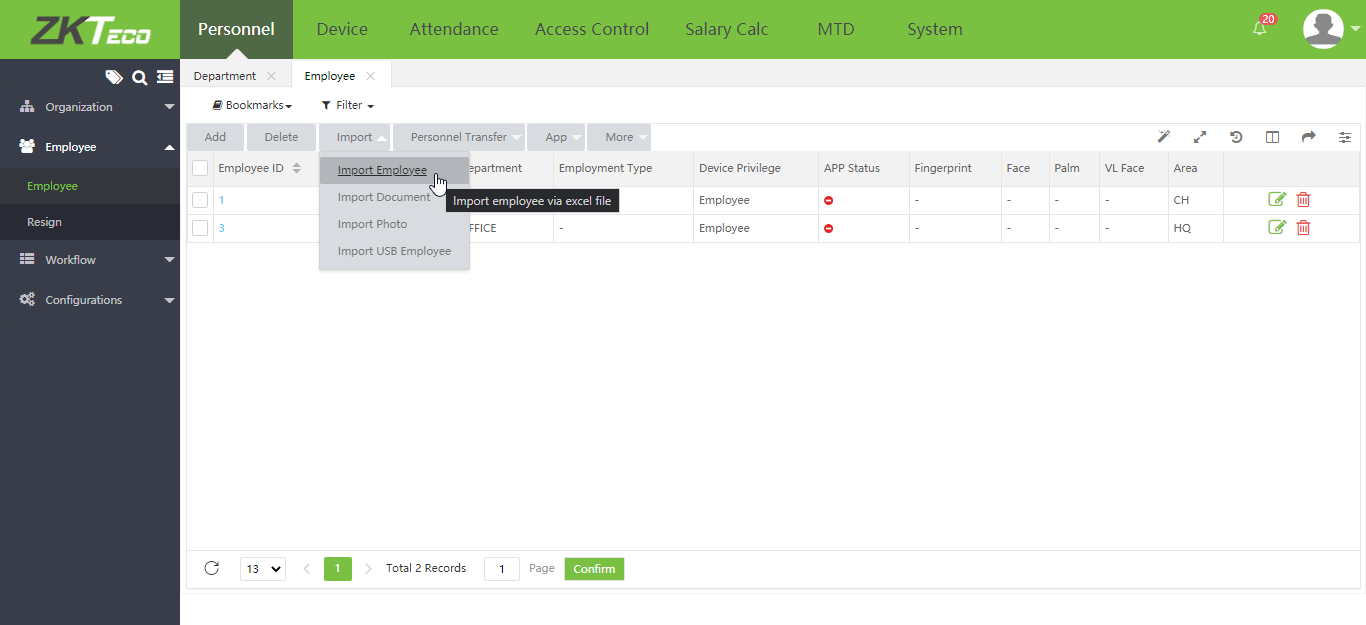
1.Download Template employees from the menu "personnel" > "Employee" > "Import"
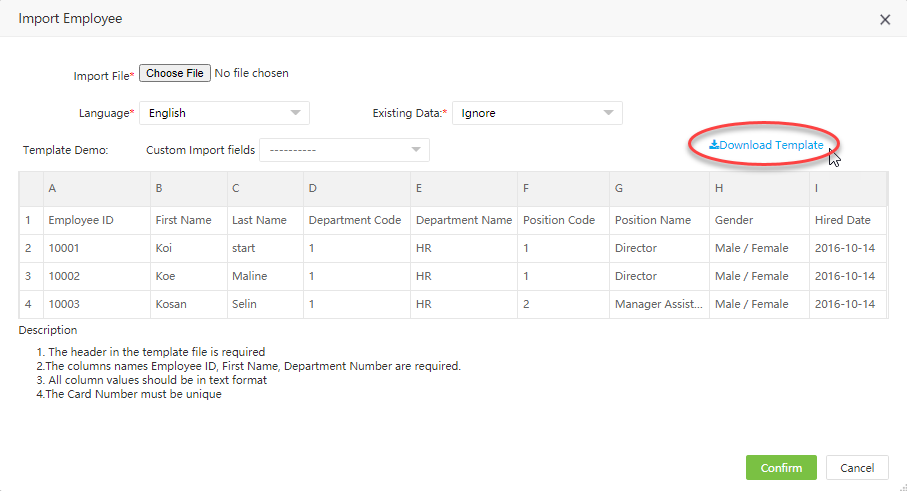
2.Click on the Download Template menu to download the template for entering employee information
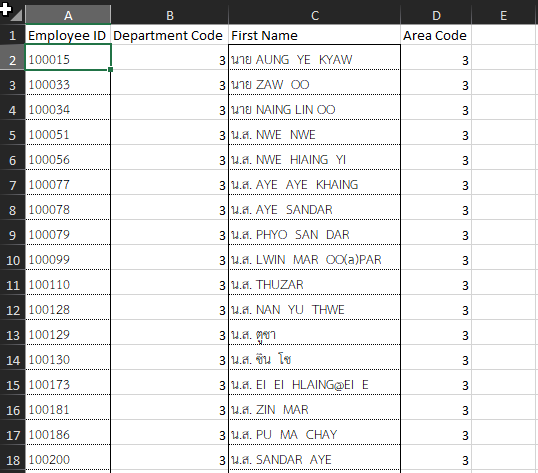
Example of entering employee information, Field A = Employee ID B = Department ID C = Employee Name D = Area Code
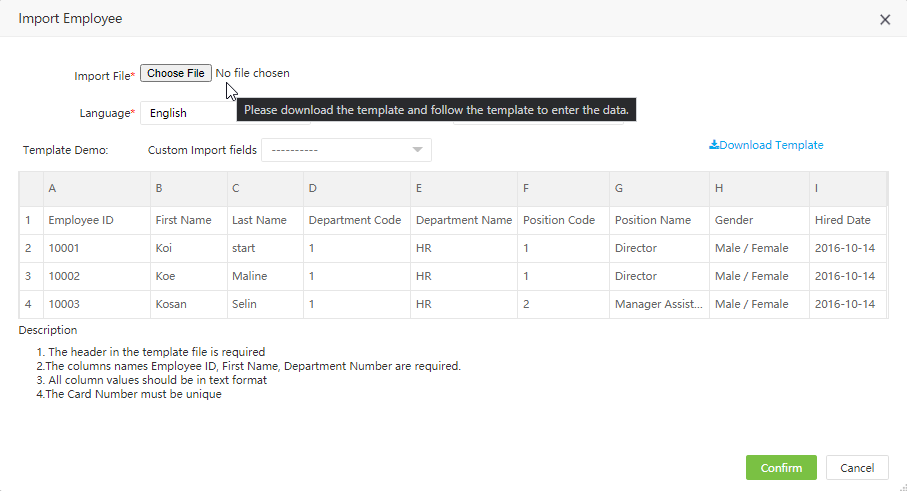
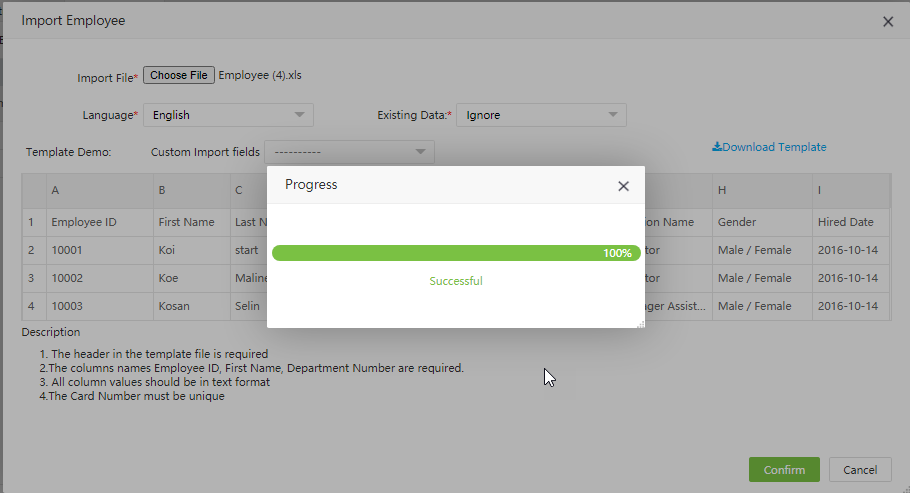
3.Then click Choose File to import employee information and click Confirm
4.Wait for the program to import the data. When the import is complete, the system will display the Successful menu page
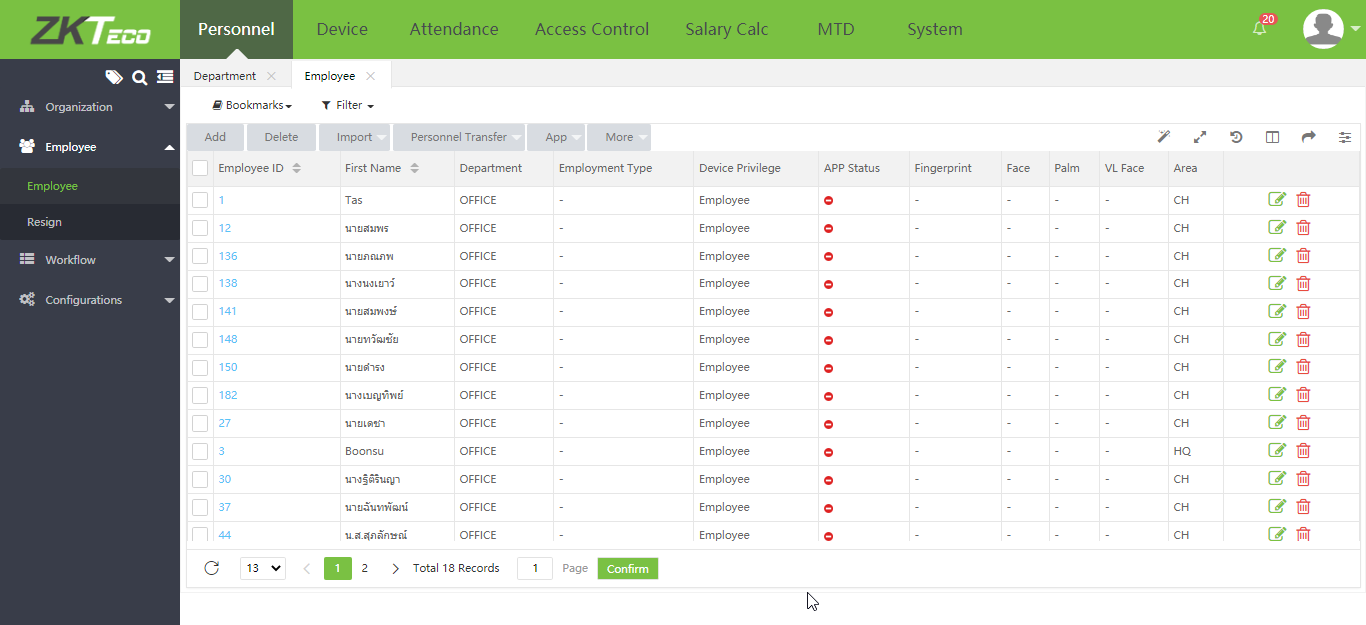
The system displays the list of employees whose data has been imported
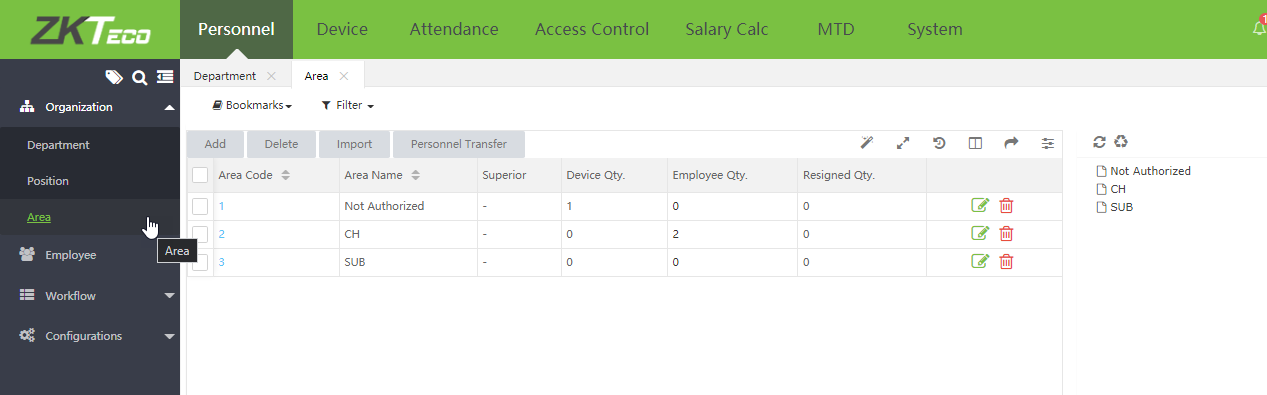
How to configure Area to assign devices to employees in each Area
1.Select Personnel > Area from the menu
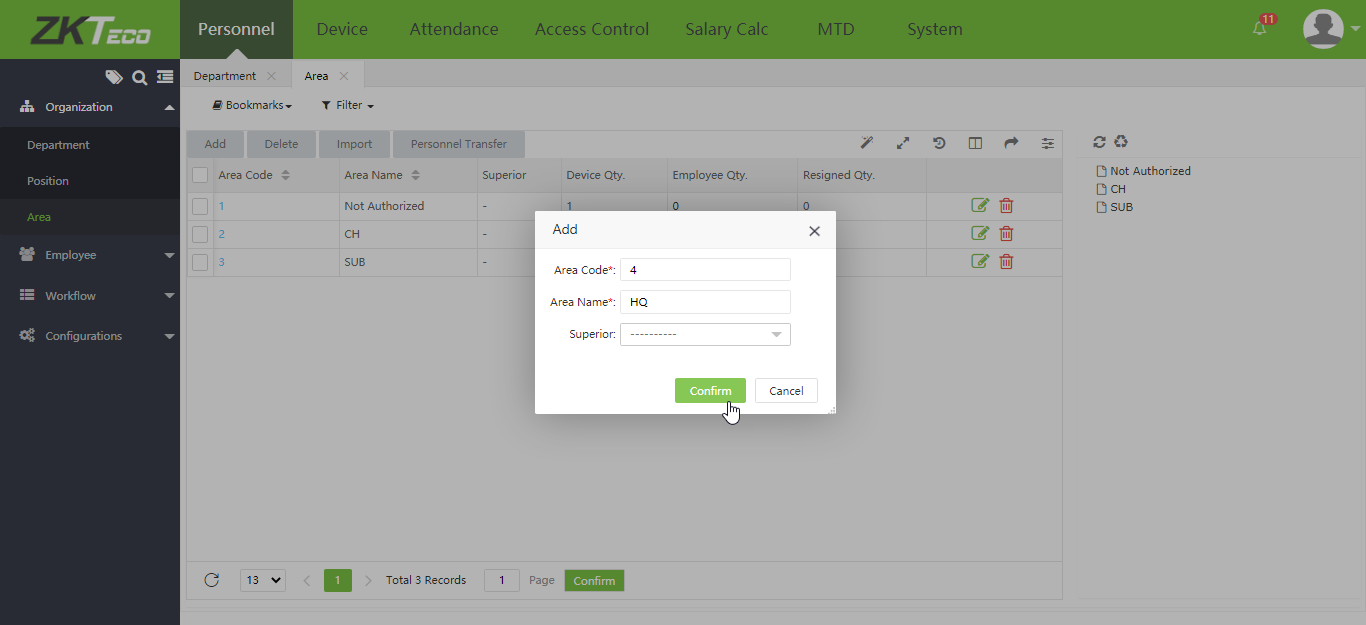
2.Enter the Area name and click Comfirm
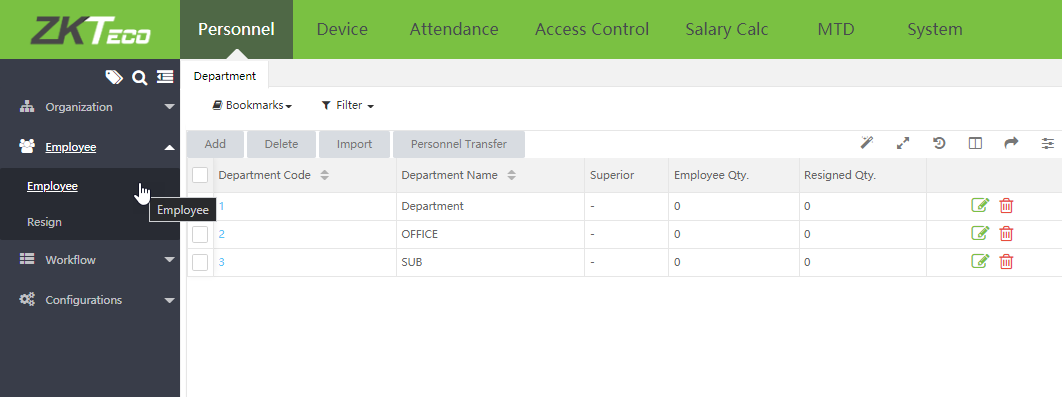
1. Go to Personnel menu and then select Employee
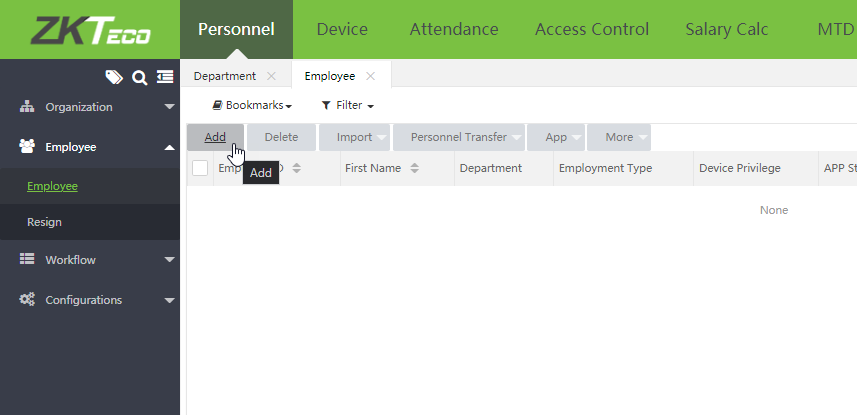
2. Click Add to add an employee
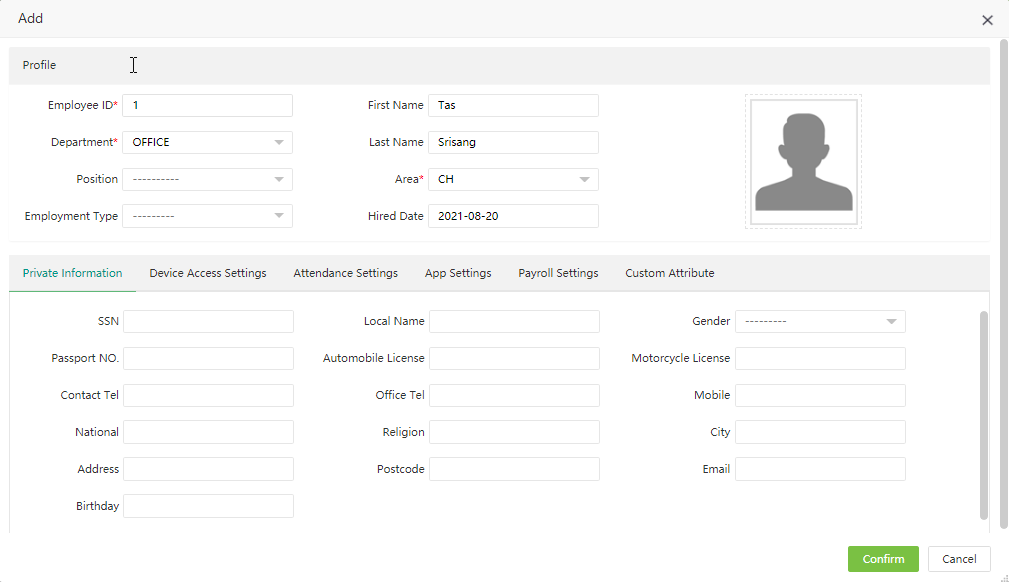
3. Enter employee details and then click Confirm
How to Add Device to System
Step 1 Server Configuration
1. Go to Communication Settings menu
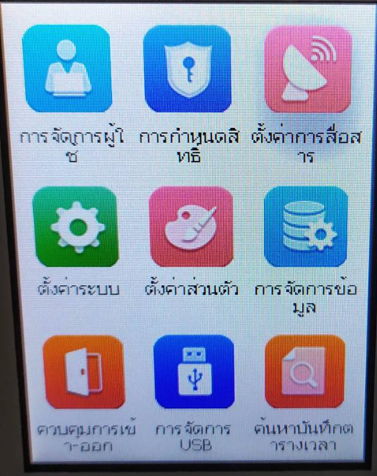
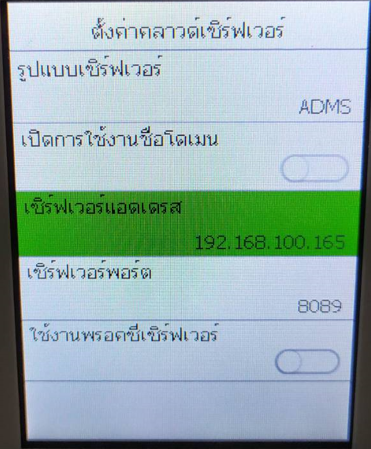
Select Cloud Server Settings menu
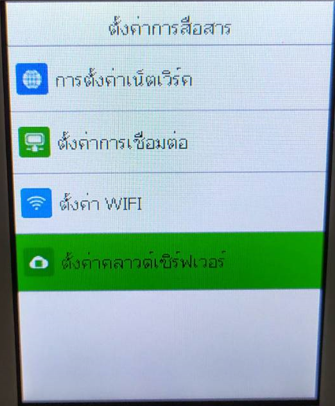
Enter the IP address and Port of the Server where BioTime program is installed, then click Save
Step 2 Add Device to Server
1. Open BioTime program > Device and you will see the list of devices waiting to be imported to the system
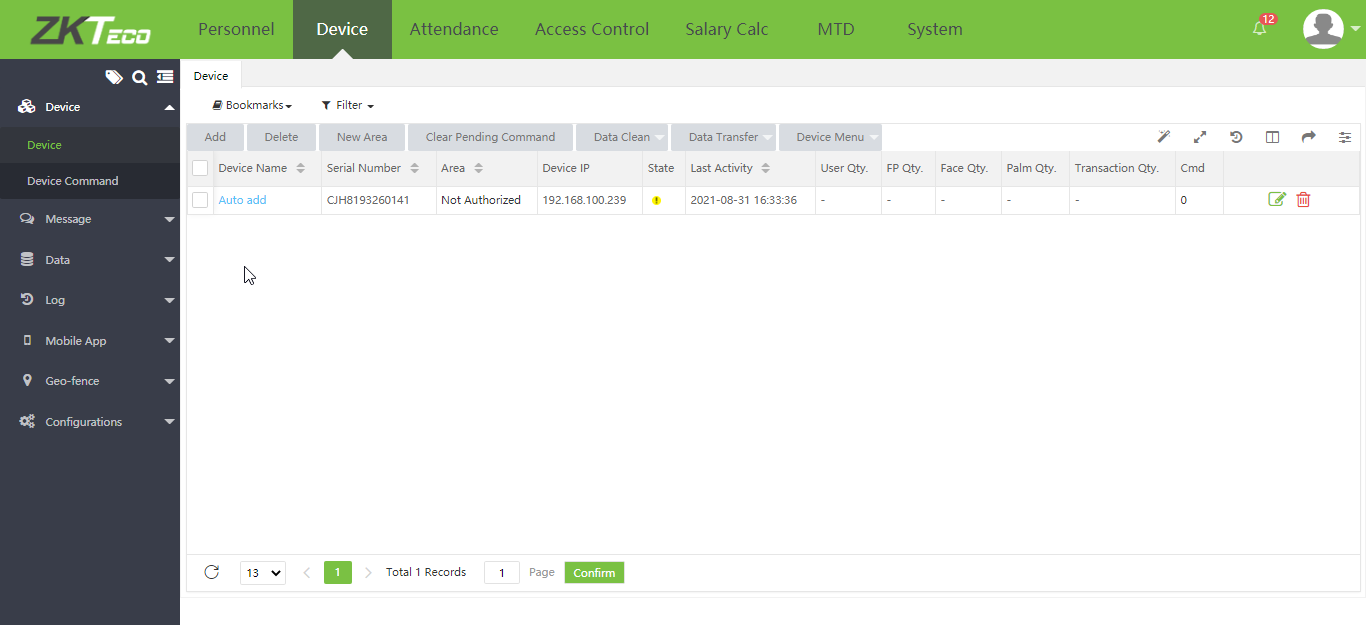
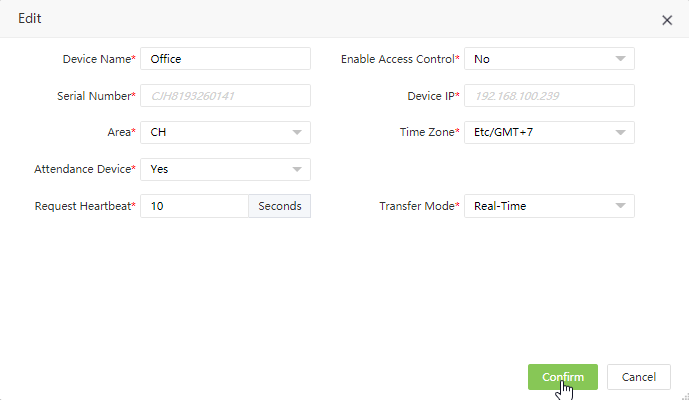
2. Click on Auto add option to add device to the system then click Confirm