Setup Methods for BS-100 Biometric Scanner (Color Display)
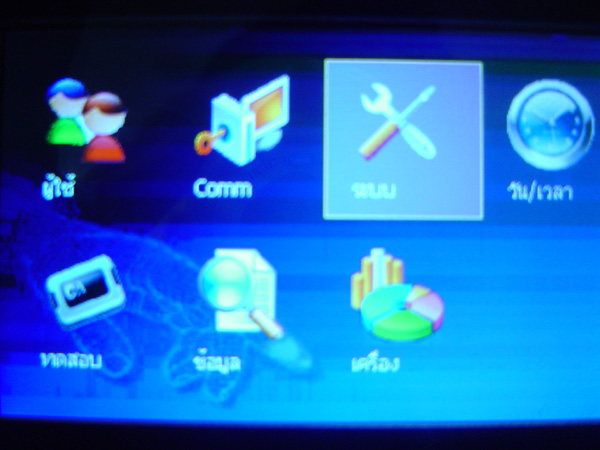
SearchPress and hold the M/OK button to enter the menu. Select System menu and press OK
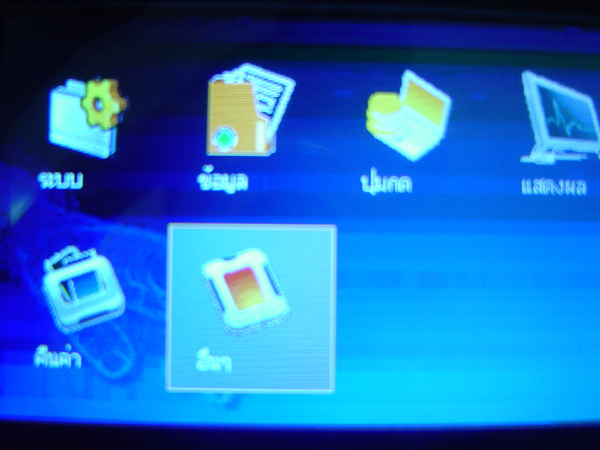
Select Other menu and press OK
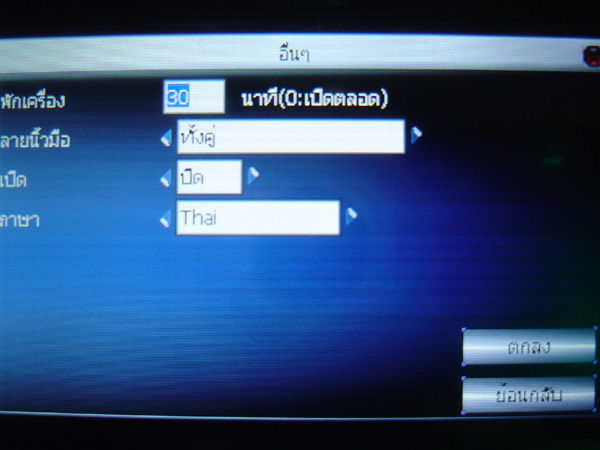
This window allows you to set device sleep settings or fingerprint verification settings
Here, go to the Language menu and select Change. Then press OK button
A message will then appear confirming that the changes have been saved. Press OK
Press and hold the M/OK button to enter the menu. Select the System menu and press the OK button
Select the Reset menu and press the OK button
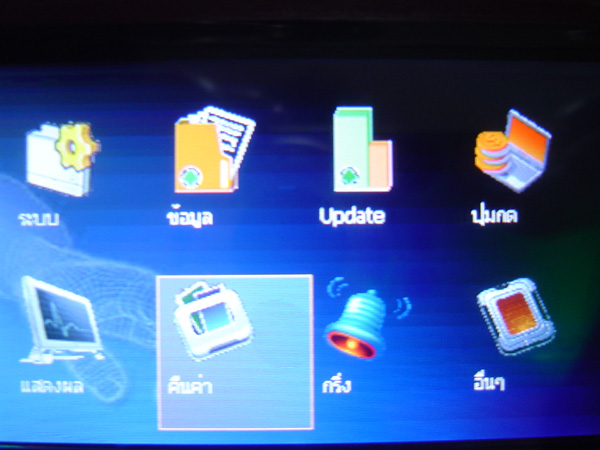
In this window you can choose which settings you want to reset
or you can choose to reset everything, then press the OK button
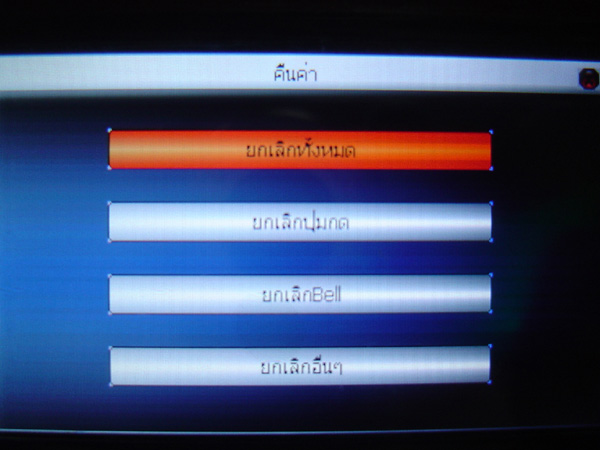
Then a confirmation message will appear asking you to confirm the settings. Select OK to proceed with resetting the settings
Press and hold the M/OK button to enter the menu. Select System menu and press OK
Select the Display menu and press OK
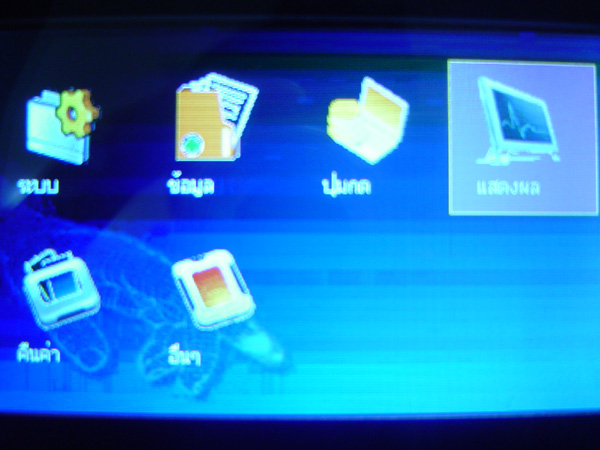
This window allows you to set the image display. You can configure whether or not to display the fingerprint when scanning a finger
Select the clock format and then select OK
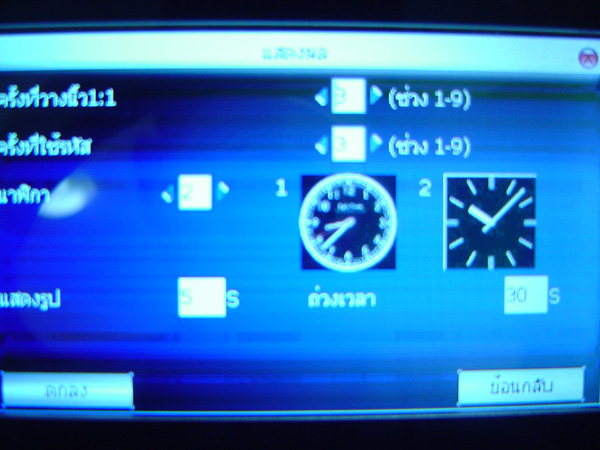
A message will appear confirming that the settings have been completed. Press OK
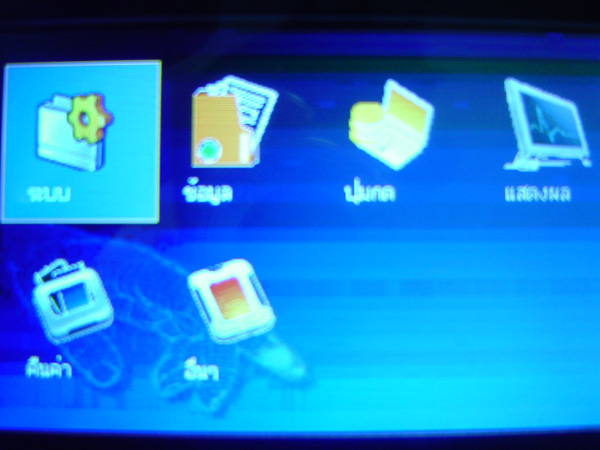
Press and hold the M/OK button to enter the menu. Select System and then press the OK button
Select the System menu and press the OK button
Check section: Set and calibrate the fingerprint scan resolution
Date format section: Select the format you want to use
Key tone section: If enabled, there will be a sound when pressing buttons on the scanner
Sound section: If you do not want sound feedback when scanning fingerprints, select
Off or if you want to lower the volume or increase it, you can select from this section
Then press the OK button to save
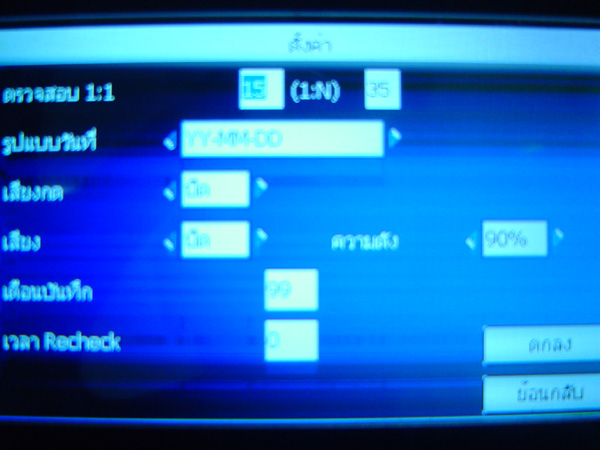
Then press the OK button to save
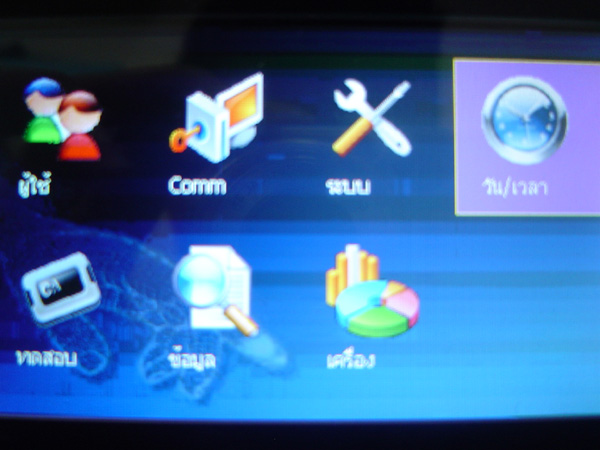
Press and hold the M/OK button to enter the menu, select Date/Time menu, then press OK button
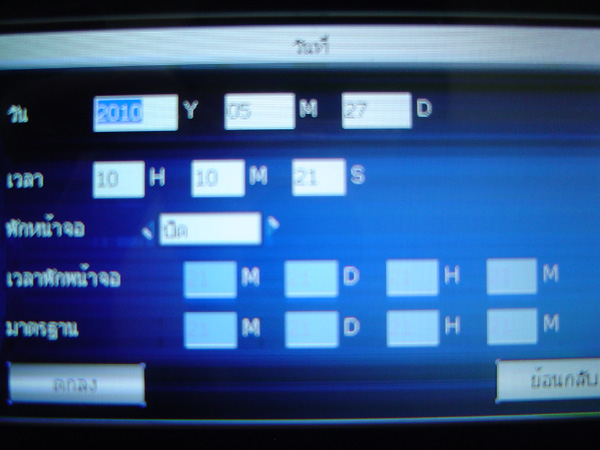
This window allows you to set the time and date of the scanner device
For the Screen Saver section, if you want to use the Screen Saver function, change it from Off to On
To enable this function, enter the screen saver time as desired, then move to the
OK button to save the settings
Press and hold the M/OK button to enter the menu. Select the USB menu and press the OK button
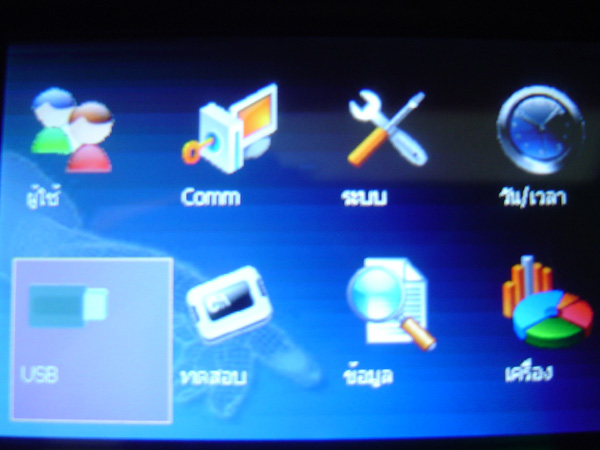
Then select pull data or send data and press the OK button
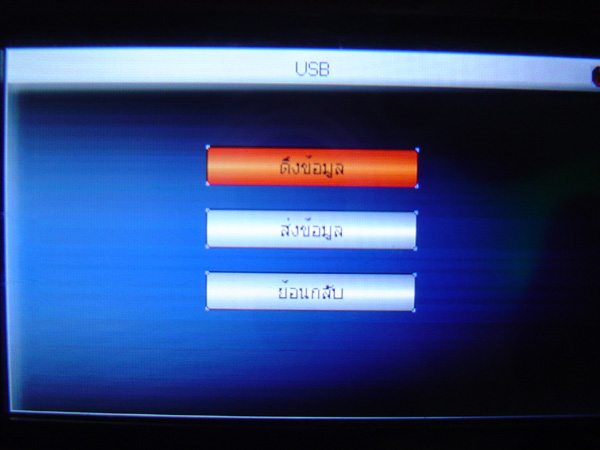
This window allows you to select what data you want to pull or send. Make your selection and press the OK button
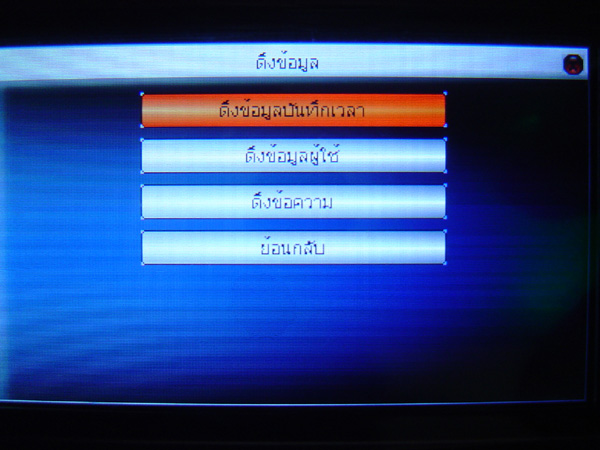
Then a message will appear indicating that the data pull or send was successful. Click OK
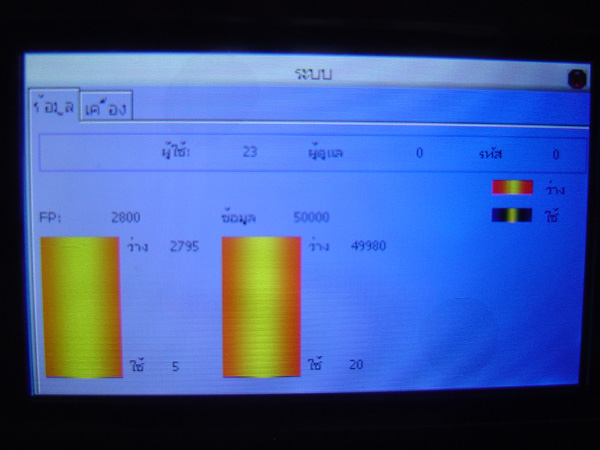
Press and hold the M/OK button to enter the menu. Select the menu heading Device and press the OK button
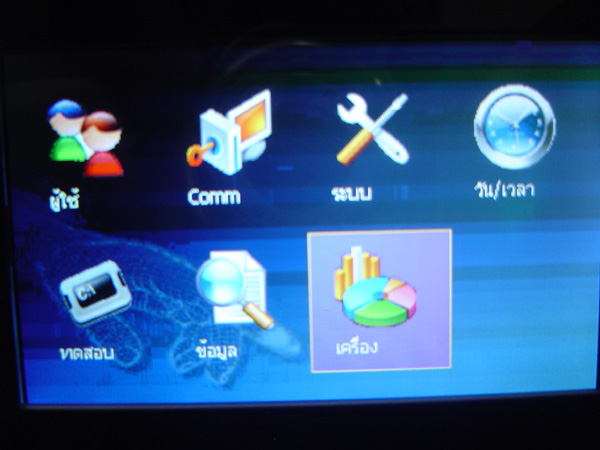
The first window that appears shows the memory information of the scanner. This window displays the amount of
data already used and how much free space remains for recording user fingerprints.
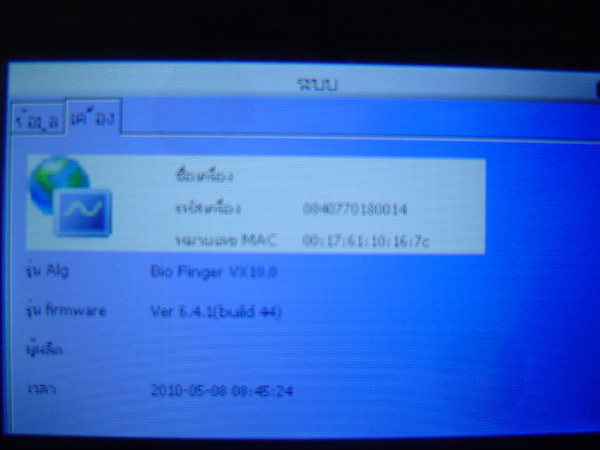
The Device window shows the device specifications including the device code, model, and Firmware version.